Moving day
Populating NetBox for a plant is a house move. Everything you own has to end up in the new place. Some of it is fragile, and one box, every time, is labeled MISC and contains a stapler, three keys to nothing and the one cable you'll need on Tuesday.
People who move well label the boxes before they pack them, decide which room each box goes to before the truck arrives, and unpack in an order that makes sense: beds before pictures, the kitchen before the dinner party.
This guide is that plan for a small or medium manufacturing plant: what to import into NetBox, in what order, from files you already have, and how to check each step. It is opinionated on purpose, in favor of fewer re-imports.
A few terms, briefly:
- NetBox is an open-source database for network infrastructure: sites, racks, devices, cables, VLANs, prefixes and IP addresses. Many teams use it as the single place where network facts are recorded.
- NetDiagrams reads a NetBox site and draws it in draw.io to a standard page set (the S01 standard). It reads NetBox with GET requests and never connects to a network device. The one exception is opt-in:
netbox-setup --apply(Step 1) can create its own fields, tags and roles for you; it only adds, never changes. - CPwE (Converged Plantwide Ethernet) is a published reference architecture for plant networks: an enterprise zone, an industrial DMZ, the industrial zone, and inside it cell/area zones and a safety zone.
- Purdue levels rank equipment by function, from level 0 (sensors and drives) up through level 1 (PLCs), level 2 (HMIs), level 3 (site operations), level 3.5 (the industrial DMZ) and levels 4 and 5 (business IT and the outside world).
- A zone, in the IEC 62443 sense, is a group of assets with the same security requirements. A cell for Line 2 Packaging is a zone. So is the safety system.
The examples use Plant A, the fictional plant that ships with NetDiagrams (netdiagrams sample). Its site code is S01, so its devices are called things like S01-OT-CORE-1 and S01-C02-IE01. Swap in your own code as you read.
We email a link to confirm, then the download and a note when a new book or tool release ships. Unsubscribe anytime.
F.1 The ground rules
1. Order matters because objects point at objects. A device points at a site, a location, a rack, a role and a device type. A cable points at two interfaces. An IP address points at an interface and a VRF. Import the thing being pointed at first, or the import fails row by row.
2. Nothing touches the network. Everything in this guide comes from files people already have: spreadsheets, drawings, purchase records, configuration backups on file, the firewall's interface list. Nobody logs into a switch, and nothing scans a subnet. Scans and logins can upset older controllers and need a change window of their own, while the files on the share answer most of these questions without one. If your organization already runs automated discovery into NetBox, that is your organization's decision, and it is outside this guide.
3. Names are exact. Device names match hostnames. Interface names match the running configuration. Cable labels match the printed labels. Matching is done on strings, and strings don't forgive.
4. Useful first, complete later. A NetBox that holds the backbone and one cell, correctly, beats one that holds everything approximately. The drift report (section F.10) tells you what to add next.
5. Read every row before you import it. NetBox will happily import a typo.
F.2 The boxes you already have
Gather the scraps into one folder first. Every plant has more than it thinks.
| Source you probably have | What it gives you |
|---|---|
| Asset spreadsheet or maintenance system export | Device names, models, locations, sometimes serials |
| Purchase orders, invoices, support contract lists | Models, serials, quantities, support dates |
| The old drawing, even a bad one | Which devices connect to which, which cell is which |
| Switch configuration backups already on file (from the integrator, a backup job or a change record) | Hostnames, exact interface names, port-channels, VLANs, SVI addresses, VRFs |
| The firewall's exported configuration or interface list | Subinterfaces, gateway addresses, zone names |
| Cable schedule or as-built from the installer | Cable labels, ends, media |
| Integrator handover pack for each line | Cell devices, IPs, ring layout, cabinet names |
| Carrier contracts and invoices | Circuit IDs, providers, speeds |
| Radio commissioning sheets | Point-to-point links, SSIDs, distances |
| Photos of cabinets and racks | Labels, positions, which port is really used |
Reading a configuration file already on a file share is fine; pulling a fresh one from the device is not this guide's method. If the backup is two years old, mark what you take from it "to verify" and confirm it on a walk-down with a clipboard.
F.3 The unpacking order
This is the recommended order for a plant, with the reason each step sits where it does.
| Step | Import | Depends on |
|---|---|---|
| 1 | Zone tags, custom fields, device roles (from netdiagrams netbox-setup) |
Nothing. These are the box labels |
| 2 | Region or site group, then the site | Nothing |
| 3 | Locations as a tree, then racks | Site, zone tags |
| 4 | Manufacturers, platforms, device types, with their end-of-sale and end-of-support dates | The lifecycle fields from step 1 |
| 5 | Virtual chassis records for stacks | Nothing |
| 6 | Devices | Steps 1 to 5 |
| 7 | Interfaces beyond the device type: LAGs, SVIs, subinterfaces; then LAG membership | Devices |
| 8 | Cables with labels | Interfaces |
| 9 | VRFs, VLAN groups (optional), VLANs, prefixes | Site, zone tags |
| 10 | IP addresses on interfaces, gateways, primary IPv4 | Interfaces, VRFs |
| 11 | Circuits and their terminations | Site, interfaces |
| 12 | Wireless links | Interfaces |
| 12b | Wireless LAN group (optional), then wireless LANs | VLANs |
| 13 | Modules in module bays, then inventory items: transceivers on interfaces, power supplies, fans | Devices, interfaces, the item roles from step 1 |
| 14 | Audit evidence: owner contacts, then the evidence fields on the site, rooms and devices | Site, locations, devices, the fields and contact roles from step 1 |
This is a dependency order, not a calendar. Step 9 doesn't need cables, so VLANs can come early if the switch backups are easier to read than the cable schedule. Step 10 can't come before steps 7 and 9.
F.4 How NetBox bulk import works
Every list in NetBox has an Import button. The import page takes pasted text or an uploaded file in CSV, JSON or YAML. CSV is easiest to build from a spreadsheet; YAML is how device types with their ports are usually shared. Some habits:
- Use the field names NetBox shows. The import page lists the accepted and required fields for your version. Check it before building a large file; names occasionally change between releases.
- Related objects are mostly looked up by name, tags by slug. The exceptions in this guide: a device type by its model, a VLAN by its VLAN ID, a circuit by its
cid, and an interface's VRF by its route distinguisher. In the examples below,siteisPlant A,roleisIndustrial switch, andtagsiszone-cell02. Several tags go in one quoted cell:"zone-cell02,end-of-support". - Custom fields are columns prefixed with
cf_, such ascf_purdue_levelorcf_sw_version. A selection field takes the choice value (L2, not "Level 2 · Area supervisory control"). - Updates need an
idcolumn. Export the list, edit the rows, keepidand import again. - Import two rows first. If they come out right, import the rest.
The examples below are trimmed to the columns that matter, and say so where a column may differ between NetBox 4.x releases.
What the import page looks like. Open Devices and click Import. At the top is a large text box for pasted data, with a separate tab for uploading a file, and a format selector (auto-detect, CSV, JSON or YAML). Below the form is the field list: every field the import accepts, with the required ones marked and a short note on what each expects.
Paste your header row and two data rows, leave the format on auto-detect or pick CSV, and submit. NetBox either lists the objects it created or names the row and field it rejected.
F.5 Step by step
Step 1. The box labels: netdiagrams netbox-setup
NetBox has no built-in idea of a security zone or a Purdue level. NetDiagrams writes the import files that add them:
netdiagrams netbox-setup
This writes a netbox-setup/ folder with numbered CSV files and a README.txt. Import them in order:
| File | Import it under |
|---|---|
1-custom-field-choice-sets.csv |
Customization > Custom Field Choices > Import |
2-custom-fields.csv |
Customization > Custom Fields > Import |
3-zone-tags.csv |
Customization > Tags > Import |
4-device-roles.csv |
Devices > Device Roles > Import |
5-inventory-item-roles.csv |
Devices > Inventory Item Roles > Import |
6-contact-roles.csv |
Organization > Contact Roles > Import |
You get choice sets for Purdue level (L5 down to L0) and IEC 62443 security level (SL1 to SL4); the custom fields purdue_level and security_level_target, plus asset fields such as criticality (critical, high, medium or low), sw_version and lifecycle; one tag per zone in the template (zone-it-ent, zone-idmz, zone-ot-ops, zone-ot-mgmt, zone-cell01 to zone-cell03, zone-sis, zone-boundary); sixteen device roles from access-point to workgroup-bridge; three inventory item roles (transceiver, psu, fan) for Step 13; and, for Step 14, the audit evidence fields with their lists (compliance scope, data classification, physical access, monitoring, log forwarding) and two contact roles, Asset owner and Custodian. The lifecycle fields end_of_sale, end_of_support and eol_notice sit on device types (Step 4), and an optional gateway field sits on prefixes (Step 10).
Import them all; it costs nothing. Filling them is another matter, and not every field earns its keep in a plant. Appendix I goes through each custom field: what it is for, the values to use, where to set it so devices inherit it, and whether a plant must, should or may fill it.
If NetDiagrams can read your NetBox, it leaves out anything already there, and a missing file means there is nothing to add. --offline writes every file without asking NetBox. Either way, you do the importing, so you can read each row first.
If you'd rather not import by hand, netdiagrams netbox-setup --check lists what is present or missing and changes nothing, and netdiagrams netbox-setup --apply creates the missing objects through the API. It needs a token that can write, makes one call per object, and never updates or deletes; a field or tag you already have is left alone and reported as present. Switch back to a read-only token afterward.
Check: Customization > Tags lists the zone-* tags, and the Custom Fields list shows purdue_level under the OT group.
Step 2. Organization: region, site group, site
One NetBox site per plant. NetDiagrams draws one file per site that has devices, named after the site's slug, so keep the slug short: s01, not plant-a-main-campus-building-complex.
Regions (geography) and site groups (such as "Plants") are optional for one plant and useful from the second. Create them before the site:
name,slug
North America,north-america
name,slug,status,region,group,time_zone,description
Plant A,s01,active,North America,Plants,America/Chicago,Assembly and packaging plant
The first goes under Organization > Regions (site groups import the same way, under Organization > Site Groups); the second under Organization > Sites.
Check: the site page shows the region and group, and the slug is what you want the drawing to be called.
Step 3. Locations as a tree, then racks
Locations nest. Build them the way people in the plant give directions: building, then area or hall, then cell or line. The tree is how zones get inherited (section F.6), so this step pays back for years.
site,parent,name,slug,status,tags
Plant A,,Main building,main-building,active,
Plant A,Main building,MDF-01,mdf-01,active,
Plant A,Main building,Control room,control-room,active,
Plant A,Main building,Production hall,production-hall,active,
Plant A,Production hall,Cell01 floor,cell01-floor,active,zone-cell01
Plant A,Production hall,Cell02 floor,cell02-floor,active,zone-cell02
Plant A,Production hall,Cell03 floor,cell03-floor,active,zone-cell03
Plant A,Main building,SIS room,sis-room,active,zone-sis
Plant A,,PH-01,ph-01,active,zone-cell03
Plant A,,WH-01,wh-01,active,zone-it-ent
Put parents above children. If your NetBox version rejects a child because its parent arrived in the same file, import one level of the tree at a time.
Notice what is tagged. The cell floors, the SIS room, the pump house (PH-01) and the warehouse each hold one zone, so they carry the tag. MDF-01 holds several zones in one room, so it carries none; its devices get their own tags in step 6.
The pump house is a separate building, yet it belongs to CELL03, because it is part of the utilities process. Zones follow the process, not the walls.
Racks come next, under Racks > Racks:
site,location,name,status,width,u_height
Plant A,MDF-01,R03,active,19,42
Plant A,MDF-01,R04,active,19,42
Plant A,MDF-01,R05,active,19,42
Plant A,Cell02 floor,CP-201,active,19,42
A rack imported without a rack type needs width (10, 19, 21 or 23 inches) and u_height. Control cabinets on the floor (Plant A's CP-201 for Line 2) can be racks too; give them nominal values, because the import still asks for both. Place devices in them without a U position if the cabinet is DIN rail rather than rack units.
Check: the site's location list shows the tree indented the way you drew it, and every rack sits in the right room.
Step 4. Manufacturers, platforms and device types
A device type is the model: its height and the ports it ships with. NetBox copies those ports onto every device of that type, which makes device types the cheapest way to get correctly named interfaces.
The usual source is the community device-type library on GitHub, a collection of YAML files maintained by NetBox users. Find your model, check its interface names against your configs, and paste it into Devices > Device Types > Import. Its manufacturer must already exist (Devices > Manufacturers).
name,slug
Generic,generic
For equipment the library doesn't have, such as a PLC, an HMI panel or a drive, write a small device type yourself:
manufacturer: Generic
model: PLC
slug: generic-plc
u_height: 0
interfaces:
  - name: X1
    type: 1000base-t
  - name: X2
    type: 1000base-t
Use the port names printed on the device or used by its configuration tool.
Lifecycle dates go on the device type too. end_of_sale, end_of_support and eol_notice (a link to the vendor's announcement) are custom fields on the model, from Step 1, so one entry covers every device of it. A Device Types import updates them by ID; Plant A's three ProCurve models look like this:
id,cf_end_of_sale,cf_end_of_support
7,2016-04-30,2021-04-30
8,2013-10-31,2018-10-31
21,2017-07-31,2022-07-31
A device's own end_of_support overrides its model's, for a unit on an extended contract. netdiagrams gaps writes 15-device-models.csv, one row per network model with no end-of-support date, with its ID filled in. Appendix I.3 says why a plant should date every network model. Platforms (the operating system) go under Devices > Platforms, with name, slug and optionally manufacturer. NetDiagrams falls back to the platform for the software column of the asset register when no sw_version is recorded.
Check: open one imported device type and compare its interface list with a saved config for that model, line by line, for the first few ports and the uplinks.
Step 5. Virtual chassis for stacks
A stack, or a pair of switches running as one, is several NetBox devices joined by a virtual chassis. Plant A's OT core is a two-member stack called S01-OT-CORE; its IT core pair is S01-IT-CORE.
The least fiddly order is to create the virtual chassis records just before the devices, by name only, under Devices > Virtual Chassis:
name
S01-OT-CORE
S01-IT-CORE
The device import in step 6 names the chassis and each member's position; afterward, set each chassis's master. (If your NetBox's device import doesn't accept virtual_chassis and vc_position, add the members from the virtual chassis page instead.)
Interface numbering follows the member: member 2 of the OT core has GigabitEthernet2/0/12, not a second GigabitEthernet1/0/12. If the device type gave member 2 member-1 numbering, bulk-rename its interfaces to match the config.
Step 6. Devices
Now the furniture arrives. Under Devices > Devices > Import:
name,role,manufacturer,device_type,status,site,location,rack,position,face,serial,asset_tag,virtual_chassis,vc_position,tags,cf_criticality,cf_sw_version
S01-OT-CORE-1,Core switch,Cisco,Catalyst 9300-24S,active,Plant A,MDF-01,R04,40,front,FOCxxxxxx51,A-0050,S01-OT-CORE,1,zone-ot-ops,critical,IOS-XE 17.12.x
S01-OT-CORE-2,Core switch,Cisco,Catalyst 9300-24S,active,Plant A,MDF-01,R05,40,front,FOCxxxxxx52,A-0051,S01-OT-CORE,2,zone-ot-ops,critical,IOS-XE 17.12.x
S01-FW-ITOT-01,Firewall,Palo Alto Networks,PA-450,active,Plant A,MDF-01,R03,20,front,0xxxxxxxx11,,,,zone-boundary,critical,
S01-C02-IE01,Industrial switch,Cisco,IE-3400-8T2S,active,Plant A,Cell02 floor,CP-201,,,FDOxxxx021,A-1021,,,,high,IOS-XE 17.12.x
S01-C02-PLC01,PLC,Generic,PLC,active,Plant A,Cell02 floor,CP-201,,,,,,,critical,
The devices in MDF-01 carry a zone tag because their room holds several zones. The cell devices don't need one: they inherit zone-cell02 from Cell02 floor. The boundary firewall gets zone-boundary, because the device that enforces a boundary belongs to neither side.
Three columns decide whether the drawing works:
name, exactly as the hostname, with a shared site prefix (S01-). NetDiagrams swaps that prefix into the template;--rename S01-=S07-sets it by hand.role, from step 1. A device with no name match takes the template slot of its role, so matching roles save hand placing.status, honestly:plannedfor the switch on order,activefor the one in the rack,decommissioningfor the one nobody has removed yet.
cf_criticality can wait, but not forever. Rate each device with the person who owns what it runs: critical if the line stops or something unsafe can happen when it fails, then high, medium or low. Critical devices get a red stripe down the left edge of their cards and every rating goes in the asset register, which is the first thing an auditor asks for.
Check: filter the device list by site and sort by role. Every row has a template role, a location, and a name you could type into a terminal.
Step 7. Interfaces and LAGs
Physical ports came with the device type. What's left is what the configuration creates: port-channels (LAGs), VLAN interfaces (SVIs) and firewall subinterfaces. Import them under Devices > Interfaces > Import, named as in the saved configs:
device,name,type,parent,description
S01-OT-CORE-1,Port-channel21,lag,,To S01-FW-ITOT-01 ae2
S01-OT-CORE-1,Vlan520,virtual,,C02-CTRL gateway
S01-OT-CORE-1,Vlan529,virtual,,TR-C02 transit
S01-FW-ITOT-01,ae2,lag,,To S01-OT-CORE Po21
S01-FW-ITOT-01,ae2.529,virtual,ae2,Transit to VRF CELL02
S01-FW-ITOT-01,ae2.590,virtual,ae2,SIS gateway
S01-C02-IE01,Vlan390,virtual,,Management
Then set LAG membership, mode and VLANs. On the device's Interfaces tab, select the members, bulk edit, and set the LAG, the 802.1Q mode and the untagged and tagged VLANs. In Plant A, ethernet1/3 and ethernet1/4 on S01-FW-ITOT-01 belong to ae2; GigabitEthernet1/0/1 and GigabitEthernet2/0/1 on the OT core belong to Port-channel21. VLAN membership can wait until the VLANs exist in step 9.
An export, edit and re-import with the id column works too. Current NetBox's interface import accepts lag, mode (access, tagged or tagged-all), untagged_vlan and tagged_vlans, which take VLAN IDs (add a vlan_group column if the same ID exists more than once), and vrf, which it looks up by route distinguisher, not by name. Check the field list on your version's import page before relying on them.
Check: open one LAG and confirm its members; open one trunk and compare its tagged VLANs with the config backup.
Step 8. Cables with labels
A cable connects two interfaces and carries a label. NetDiagrams matches drawn links to NetBox cables on that label and nothing else, so a cable without one cannot be drawn in place and is left out of the link register. Import under Connections > Cables > Import:
side_a_device,side_a_type,side_a_name,side_b_device,side_b_type,side_b_name,type,status,label
S01-C02-IE01,dcim.interface,GigabitEthernet1/1,S01-OT-CORE-1,dcim.interface,GigabitEthernet1/0/12,smf-os2,connected,S01-CBL-055
S01-C02-IE03,dcim.interface,GigabitEthernet1/2,S01-OT-CORE-2,dcim.interface,GigabitEthernet2/0/12,smf-os2,connected,S01-CBL-056
S01-C02-IE01,dcim.interface,GigabitEthernet1/2,S01-C02-IE02,dcim.interface,GigabitEthernet1/1,mmf-om1,connected,S01-CBL-057
S01-FW-ITOT-01,dcim.interface,ethernet1/3,S01-OT-CORE-1,dcim.interface,GigabitEthernet1/0/1,cat6,connected,S01-CBL-036
Those are Line 2's ring uplinks, one ring hop and one firewall port-channel member. Use NetBox's cable types (smf-os2, mmf-om1, cat6, cat6a, dac-passive and so on): the drawing turns them into media labels and colors. Add color (a hex code such as f44336), length and length_unit if your as-built has them.
No printed labels yet? Invent the scheme today (S01-CBL-nnn works), import it, and print the labels next week. It's easier to make the plant match a list than the other way round.
Check: every cable in the site's list has a label, no label appears twice, and the label on a cable you can see in the MDF matches its row.
Step 9. VRFs, VLAN groups, VLANs and prefixes
This feeds the logical page: each VLAN, its zone, its subnet and its routing table (VRF). The sources are the switch backups and the firewall's interface list.
VRFs first, under IPAM > VRFs. Plant A has CORP, GUEST, OT-OPS, OT-MGMT and CELL01 to CELL03.
name,enforce_unique
CELL02,true
OT-MGMT,true
VLANs next, under IPAM > VLANs. Put the site on every VLAN: NetDiagrams asks NetBox for the site's VLANs, so a VLAN with no site is easy to miss. Tag each one with its zone. VLANs do not inherit zones from locations.
site,vid,name,status,tags
Plant A,520,C02-CTRL,active,zone-cell02
Plant A,521,C02-IO,active,zone-cell02
Plant A,529,TR-C02,active,zone-cell02
Plant A,390,OT-NETMGMT,active,zone-ot-mgmt
Plant A,590,SIS,active,zone-sis
VLAN groups are optional for one plant. If you already group VLANs, a group whose slug starts with zone- also tells NetDiagrams the zone. Tags are simpler and win if both are present.
A caution about VLAN roles: NetDiagrams reads a VLAN's role as its zone when the VLAN has no zone field or tag. A role called cell02 becomes zone-cell02, which is handy. A role called voice becomes a zone called zone-voice, which is not. Tag your VLANs and the question never comes up.
Prefixes last, under IPAM > Prefixes, each in its VRF and linked to its VLAN:
prefix,vrf,vlan_site,vlan,status,scope_type,scope_id
10.101.120.0/24,CELL02,Plant A,520,active,dcim.site,1
10.101.121.0/24,CELL02,Plant A,521,active,dcim.site,1
10.101.252.72/29,CELL02,Plant A,529,active,dcim.site,1
10.101.90.0/24,OT-MGMT,Plant A,390,active,dcim.site,1
10.101.190.0/24,,Plant A,590,active,dcim.site,1
In current NetBox, a prefix is assigned to a site through scope_type (dcim.site) and scope_id, where scope_id is the site's numeric ID (shown in the site's URL); current releases also accept scope_name, the site's name, in place of scope_id. Older 4.x releases have a site column instead. The vlan column is the VLAN ID, and vlan_site tells NetBox which site's VLAN 520 you mean. Check the import page's field list for your version.
Check: open VLAN 520. It shows the site, the zone-cell02 tag and the prefix 10.101.120.0/24 in VRF CELL02.
Step 10. IP addresses, gateways and primary IPv4
Addresses go on interfaces. That is how NetBox knows which device holds the gateway and which address to put on a device card.
address,vrf,status,role,device,interface,is_primary
10.101.120.1/24,CELL02,active,,S01-OT-CORE-1,Vlan520,false
10.101.252.73/29,CELL02,active,,S01-OT-CORE-1,Vlan529,false
10.101.252.74/29,CELL02,active,,S01-FW-ITOT-01,ae2.529,false
10.101.190.1/24,,active,,S01-FW-ITOT-01,ae2.590,false
10.101.90.21/24,OT-MGMT,active,,S01-C02-IE01,Vlan390,true
The gateway column on the logical page is an address inside the VLAN's prefix, in the prefix's own VRF, on an interface of a device at the site. A VIP, HSRP, VRRP or anycast address (the role column) wins over a plain interface address, so give a shared gateway that role.
Plant A's VLAN 520 shows OT-CORE .1 · CELL02. The safety VLAN 590 has no SVI on the OT core; its gateway is the firewall's ae2.590. When a VLAN has no gateway on purpose, record none; the empty cell is the documentation.
is_primary marks the management address shown on the device card and in the asset register. One per device. For the firewall pair, record each unit's management address on its management interface.
Check: open prefix 10.101.120.0/24 and look at its IP addresses tab. The gateway is there, on the right device and interface, in the same VRF.
Step 11. Circuits
Carrier links live under Circuits. Create the providers and circuit types first (name, slug each), then the circuits:
cid,provider,type,status,description
S01-ISP-A-01,ISP-A,DIA,active,DIA 1G
S01-ISP-B-01,ISP-B,DIA,active,DIA 500M
S01-WAN-A-01,WAN-A,MPLS,active,MPLS / DIA
S01-WAN-B-01,WAN-B,Broadband,active,Broadband / LTE
The circuit ID (cid) is the match key for the drawing, so copy it exactly from the carrier's paperwork. Then add a termination at the site and connect it to the edge device's interface with a labeled cable: in Plant A, circuit S01-ISP-A-01 lands on S01-FW-EDGE-01 ethernet1/1 via cable S01-CBL-001. In current NetBox, a termination row takes circuit (the cid), term_side (A or Z), termination_type (dcim.site) and termination_id (the site's numeric ID); older 4.x releases used a site column. Because the columns differ between releases, we suggest creating terminations and their cables in the circuit's page rather than by CSV.
Step 12. Wireless links
A point-to-point radio hop, a mesh hop or a workgroup bridge's association is a NetBox wireless link between two radio interfaces, matched on the drawing by its two radios, then its SSID. Plant A has three: two point-to-point hops, S01-PTP1 between S01-PTP-WH-A and S01-PTP-WH-B (the warehouse) and S01-PTP2 between S01-PTP-PH-A and S01-PTP-PH-B (the pump house), and the AGV bridge's association C02-AGV (planned), from S01-WGB-AGV-01 to S01-AP-C02-01. The radios' wired sides are ordinary labeled cables, such as S01-CBL-081.
The radio interfaces (ath0 on the warehouse pair, wlan0 on the pump-house pair, radio0 on the WGB) must have a wireless interface type before NetBox will link them: Plant A's 60 GHz warehouse pair is ieee802.11ad, and ieee802.11ac or other-wireless covers most 5 GHz radios. Create the link from Connections > Wireless Links, or from one radio interface's connect menu, and fill in SSID, status, distance and authentication type. The CSV import on the same list takes device_a, interface_a, device_b, interface_b, ssid, status, distance and distance_unit. Leave the pre-shared key empty; a database many people read is no place for a key.
Step 12b. Wireless LANs
Each SSID is a NetBox wireless LAN, and page 3d's SSID table is built from them, every column, taking the zone from the wireless LAN's VLAN. Import them after Step 9, because each one points at a VLAN, and after netdiagrams netbox-setup, because the cf_wlan_* columns below are its custom fields. The source is the controller's WLAN list.
A Wireless LAN group comes first, and only if you want one (Wireless > Wireless LAN Groups, name and slug):
name,slug
S01-WLAN,s01-wlan
Then the wireless LANs, under Wireless > Wireless LANs. Plant A has six:
ssid,group,status,vlan,auth_type,auth_cipher,cf_wlan_security,cf_wlan_eap,cf_wlan_switching,cf_wlan_bands,cf_wlan_client_isolation,cf_wlan_portal,description
CORP,S01-WLAN,active,CORP-WIFI,wpa-enterprise,aes,wpa3-enterprise,EAP-TLS,tunnelled,"5ghz,6ghz",,,"Corporate 802.1X, Corp ISE"
GUEST,S01-WLAN,active,GUEST-WIFI,open,,owe,,tunnelled,"2.4ghz,5ghz",true,captive,"Internet only, rate-limited"
WH-SCAN,S01-WLAN,active,WH-SCAN,wpa-enterprise,aes,wpa2-enterprise,PEAP-MSCHAPv2,tunnelled,5ghz,,,Warehouse forklift tablets and scanners
OT-MOBILE,S01-WLAN,active,OT-WLAN,wpa-enterprise,aes,wpa3-enterprise,EAP-TLS,tunnelled,5ghz,,,"Plant tablets and scanners, OT NPS"
OT-IOT,S01-WLAN,active,OT-IOT,wpa-personal,aes,wpa2-psk,,tunnelled,2.4ghz,,,"OEM machine sensors and condition-monitoring gateways; key held by OT, rotated yearly"
C02-AGV,S01-WLAN,active,C02-CTRL,wpa-enterprise,aes,wpa3-enterprise,EAP-TLS,local,5ghz,,,"AGV workgroup bridges, 802.11r, FlexConnect local switching"
Two of these rows are Plant A's legacy, not a pattern to copy. WH-SCAN still uses PEAP-MSCHAPv2 because its older scanners do; newer Windows clients block it by default, so plan the move to EAP-TLS. OT-IOT uses one shared WPA2 key; where the sensors support it, prefer WPA3-Personal (SAE) or per-device keys (mpsk), and rotate a shared key whenever someone who knew it leaves.
auth_type takes open, wep, wpa-personal or wpa-enterprise, and auth_cipher takes auto, tkip or aes. NetBox's own types stop at WPA Personal and Enterprise, so cf_wlan_security says the rest: WPA3-Enterprise, WPA3-Personal (SAE), OWE, transition modes and per-device keys. cf_wlan_switching is tunnelled, local, bridged or cloud; cf_wlan_bands lists 2.4ghz, 5ghz and 6ghz; cf_wlan_portal is none, captive, sponsored or self. The vlan column matches the VLAN by name (VLAN 130 is CORP-WIFI), so VLAN names have to be unique; if yours repeat across sites, set the VLAN on each wireless LAN's edit page.
There's no auth_psk column on purpose. For a WPA Personal SSID, leave the key empty, here and in the form. The scope columns (which site or location an SSID belongs to) changed in NetBox 4.2, so check the import page's field list for your version, or set the scope on the edit page. In Plant A only C02-AGV has one: the location Cell02 floor.
Radios come next. Each radio interface carries NetBox's RF fields: role (ap or station), channel, width and transmit power. The channel is one of NetBox's own choices, such as 5g-151-5755-40 for the pump-house pair, 60g-2-60480-2160 for the warehouse pair, and 5g-36-5180-20 or 2.4g-1-2412-22 for the AP radios. The PtP register prints it as "ch 151 (5755/40 MHz) · 20 dBm".
Then assign each AP radio its wireless LANs (the interface's Wireless LANs field): CORP and GUEST on the office APs, CORP and WH-SCAN on the warehouse APs, OT-MOBILE and OT-IOT on AP-OT-01 to -03, C02-AGV on AP-C02-01. That is where the "broadcast on" column and the "APs by area" card come from.
Check: open the CORP wireless LAN. It shows VLAN 130, WPA Enterprise, AES and no pre-shared key. On the next build, page 3d's SSID table shows six rows, with "Office (5 APs)" in GUEST's "broadcast on" cell.
Step 13. Modules and inventory items
This step fills two registers on sheet 3b and the Power/Fans line under each port map. It is the last step because nothing else depends on it, and a drawing is useful long before it is done. The source is show inventory on each switch, which lists every module, power supply, fan and optic with its part number and serial.
A module is a card in a slot: an uplink module in a C9300, a line card in a chassis. The slot is a module bay, and it usually comes with the device type from the community library. Import modules under Devices > Modules:
device,module_bay,module_type,status,serial
S01-IT-ACC-IDF1-1,Network Module,C9300-NM-8X,active,FOCxxxxx162
S01-IT-ACC-IDF1-2,Network Module,C9300-NM-BLANK,active,
Create the module type first (Devices > Module Types, manufacturer and model). A blank filler panel is worth recording too: the register shows it as a filled bay, while a bay with no module at all shows in amber as empty.
Everything else is an inventory item (Devices > Inventory Items), with one of the three roles from step 1. An optic is a transceiver attached to the interface it sits in, so the cable & optics register can put it on the right cable end. Power supplies and fans attach to the device only:
device,name,role,part_id,serial,component_type,component_name
S01-C01-IE01,GLC-LX-SM-RGD,transceiver,GLC-LX-SM-RGD,AVxxxxx49,dcim.interface,GigabitEthernet1/1
S01-OT-CORE-1,PWR-C1-350WAC-P,psu,PWR-C1-350WAC-P,ARTxxxxx92,,
S01-OT-CORE-1,FAN-T1,fan,FAN-T1,ARTxxxxx94,,
component_type is always dcim.interface for an optic, and component_name is the interface name exactly as it is in NetBox. Older releases may not offer the two component columns on import; then attach the optic from the item's edit page. A transceiver you know is there but haven't read yet still deserves a row, named unknown and with no serial, until someone reads the label: the register shows the port as having an optic, and page 3b's plan card lists the missing serial.
The netdiagrams gaps command writes three files for this step: 9-modules.csv and 10-inventory-items.csv list modules and items with no serial, with their NetBox IDs so you can update them in place, and 11-new-optics.csv has one ready-to-fill row for every fiber port whose cable has no optic recorded.
Check: on the next build, sheet 3b's modules & power register lists S01-OT-CORE-1 with two power supplies and three fans, and the cable & optics register shows GLC-LX-SM-RGD on the C01-IE01 end of its uplink.
Step 14. Audit evidence: owners, scope, backups and monitoring
This step fills sheet 3f (Chapter 10); Appendix I.4 says which of its fields a plant needs first. Like Step 13 it can come last, and it can come in pieces: each fact is scored only once the site records it. Work from the top down, because a value on the site or a room applies to every device in it.
Owners. Create the people under Organization > Contacts (a name is enough), then assign them under Organization > Contact Assignments with the role asset-owner (accountable) or custodian (runs it day to day). Assign to a room and every device in it has that owner; assign to a device to override it. With no contact, the device's tenant stands in.
object_type,object_id,contact,role,priority
dcim.location,1,Ravi Okafor,asset-owner,primary
dcim.location,1,OT controls team,custodian,primary
dcim.location,15,Lee Novak,asset-owner,primary
dcim.site,1,Dana Ortiz,asset-owner,primary
object_id is the room's or site's NetBox ID, shown in its URL: in Plant A, 1 is Cell01 floor and 15 is the SIS room. Device 24 below is S01-OT-CORE-1.
The site. On the site's edit page, set monitoring, monitored_by, log_forwarding, log_destination and log_retention_days once. Plant A's say alerting from LibreNMS, logs to Splunk over syslog with TLS, kept 400 days.
Rooms. Set physical_access and last_verified (the date of the last walk-down) on each room, and compliance_scope and data_classification where a whole room shares them. The safety zone's room carries safety, which puts all four SIS devices in scope. A Locations import updates rooms by ID:
id,cf_physical_access,cf_data_classification,cf_last_verified,cf_compliance_scope
1,locked-cabinet,confidential,2026-06-18,
15,badge-camera,restricted,2026-08-27,safety
Devices. The dates are per device: last_config_backup, last_patched, support_contract_end and install_date, plus support_contract as text. A Devices import updates them by ID:
id,cf_last_config_backup,cf_last_patched,cf_support_contract,cf_support_contract_end,cf_install_date
24,2026-10-16,2026-08-19,SNTC 8x5xNBD,2027-06-30,2023-05-15
Dates are written YYYY-MM-DD, and the choice fields take the values from their lists (locked-cabinet, not "Locked cabinet"). Take backup dates from the backup tool's job log and patch dates from the change records, not from memory: an auditor may ask to see both.
netdiagrams gaps writes three files for this step, each listing only what is missing: 12-audit-evidence.csv (device dates, monitoring and log forwarding), 13-locations.csv (each room's physical access and last walk-down) and 14-new-owner-contacts.csv (one row per room or device with no owner, with the contact left for you to fill).
Check: on the next build, sheet 3f's Owner recorded tile reads 100, and every row of its register names an owner.
F.6 Zones and Purdue levels, the way NetDiagrams reads them
NetDiagrams looks for a device's zone in this order, and the first match wins:
- a zone custom field on the device:
security_zone(orzone,iec62443_zone,ot_zone); - a
zone-*tag on the device; - the nearest location up the tree with a zone field or a
zone-*tag; - a location whose slug names a cell, line or area with a number, such as
cell-04orline-2.
Tag the location and let devices inherit. Tag at the lowest level that holds exactly one zone: the cell floor, the SIS room, the pump house. Never tag a room that holds several zones, because every untagged device in it would inherit the wrong one. Plant A's production hall holds OT access points that belong to OT-MGMT, so the hall is untagged and only the cells below it carry tags.
Tag the device when it sits in a shared room (the MDF), when it is a boundary device (zone-boundary), or when it is the exception in its location. A device's own tag always beats its location's.
Use a custom field instead when your organization already records zones in a field, or when you want NetBox to enforce exactly one zone per device. A tag list will accept two zone tags on the same device; a single-select field will not. netdiagrams netbox-setup doesn't create a security_zone field, so if you choose this route, create it yourself, with the zone slugs as its choices.
Purdue level comes from purdue_level on the device, then on its location (walking up), then the zone's usual level, which the slug decides: zone-cell04 lands in the cell/area band, zone-idmz at L3.5.
Set purdue_level on a location only when a zone breaks that pattern, such as a vendor package tagged zone-palletizer, which would otherwise be drawn under "Other zones". Set security_level_target on the cell locations once your risk assessment has decided them.
VLANs don't use locations. They take their zone from a field or tag, then the VLAN role, then a zone-* VLAN group, then the zone or VRF of their prefix.
F.7 Names and labels that make matching work
- Device names are hostnames.
S01-C02-IE01in NetBox, in the config'shostnameline, on the drawing and on the label on the cabinet. Same case, same dashes. - One site prefix for the whole plant. NetDiagrams finds the shared prefix and uses it to rename the template. A plant where half the switches are
S01-and half arePLANTA-gives it nothing to find. - Interface names are the config's names.
GigabitEthernet1/0/12,ethernet1/3,TwentyFiveGigE2/0/17: the string the configuration writes, not the abbreviation a show command prints and not "uplink to core". - Cable labels are unique, printed and boring.
S01-CBL-055on both ends of the cable and in NetBox. No meaning hidden in the label that will be wrong after the next move; the cable's ends already record where it goes. - VLAN names follow one pattern. Plant A uses
C02-CTRL,C02-IOandTR-C02for cell 2's control, I/O and transit VLANs. Pick yours and keep it.
F.8 Good enough versus complete
Appendix D lists the minimum data for a useful drawing field by field. Here is the plant version, by stage:
| Stage | What NetBox holds | What the drawing gives you |
|---|---|---|
| Good enough (week 1) | Site and locations, every network device, zones, backbone and cell uplink cables, all VLANs and prefixes, gateways | A logical page you can review with the controls engineer; a physical page with the backbone drawn |
| Solid (month 1) | Plus serials, racks and positions, primary IPs, LAG membership, every cable between network devices | Asset and link registers you could hand to an auditor |
| Complete | Plus endpoints in every cell, circuits, wireless links, sw_version, security level targets, modules and inventory items (optics, power supplies, fans) with serials, owners and the audit evidence fields |
Every page of the standard filled, and a drift report that is mostly empty |
F.9 The first week
Monday: pack. Collect the sources from section F.2 into one folder. Run netdiagrams netbox-setup and import the six files. Create the site and the location tree, and tag the single-zone locations.
Tuesday: furniture. Import manufacturers and device types (from the community library where you can). Create virtual chassis records, then import every network device: core, firewalls, access and industrial switches, wireless controllers, radios. Endpoints can wait.
Wednesday: rooms. VRFs, VLANs and prefixes from the switch and firewall backups. Then SVIs, subinterfaces and gateway addresses. Run NetDiagrams for the first time; the logical page should already be recognizable.
Thursday: wiring. LAGs and their members, then cables with labels: the backbone first, then each cell's ring and uplinks. Run again and watch dashed links turn solid.
Friday: inspect. Work through the quality check below. Add primary IPs and serials where you have them. Run NetDiagrams, read the drift report, and write the top ten gaps on a list with names next to them. Date the drawing and share it.
F.10 Quality check, then read the drift report
Before you call a stage done:
- Every device name matches its hostname, and all share one site prefix.
- Every network device has a role from the template set.
- No device is unzoned. (In
netdiagrams draft, unzoned devices collect in a band called NOT ZONED IN NETBOX.) - Every VLAN has the site, a zone and a prefix; every prefix has its VRF.
- Every routed VLAN has a gateway address in the prefix's VRF; every unrouted one has none, on purpose.
- Every cable between network devices has a unique label that matches the physical one.
- Interface names match the configs, stack members included.
- Stacks and paired cores are virtual chassis.
- Statuses are honest: nothing
activethat is still in its box. - No passwords, keys or community strings in descriptions, comments or custom fields.
- Every device has a
criticalityrating. - For the Complete stage: every fiber cable end has its optic recorded, and every module, power supply and fan has a serial. Page 3b's plan card counts what's left.
Then run:
netdiagrams --site s01 -o s01.drawio
The first run asks for your NetBox URL and an API token (read-only is enough). It writes s01.drawio and s01.drift.md. The drift report is the to-do list, and each section maps to a step in this guide:
| Drift report section | What it usually means | Go back to |
|---|---|---|
| Devices placed in a template slot | A NetBox name the template doesn't use; fine if intended | Step 6, or rename |
| In NetBox, no slot on the drawing (in the tray) | A device whose role or zone has no slot | Steps 1, 3 and 6 |
| Template devices removed because the site doesn't have them | Equipment not yet imported, or genuinely absent | Step 6 |
| Links on the drawing with no NetBox cable (dashed) | A missing cable or a label that doesn't match | Step 8 |
| Cables in NetBox with an end not on the drawing | A cable to a device that isn't drawn | Steps 6 and 8 |
| Tables rebuilt | Row counts per zone; a zone with too few rows is missing VLANs | Step 9 |
On the finished Plant A sample, every gap section reads "None" except one dashed link: a placeholder ‹cable label› in the template. That is what a clean report looks like.
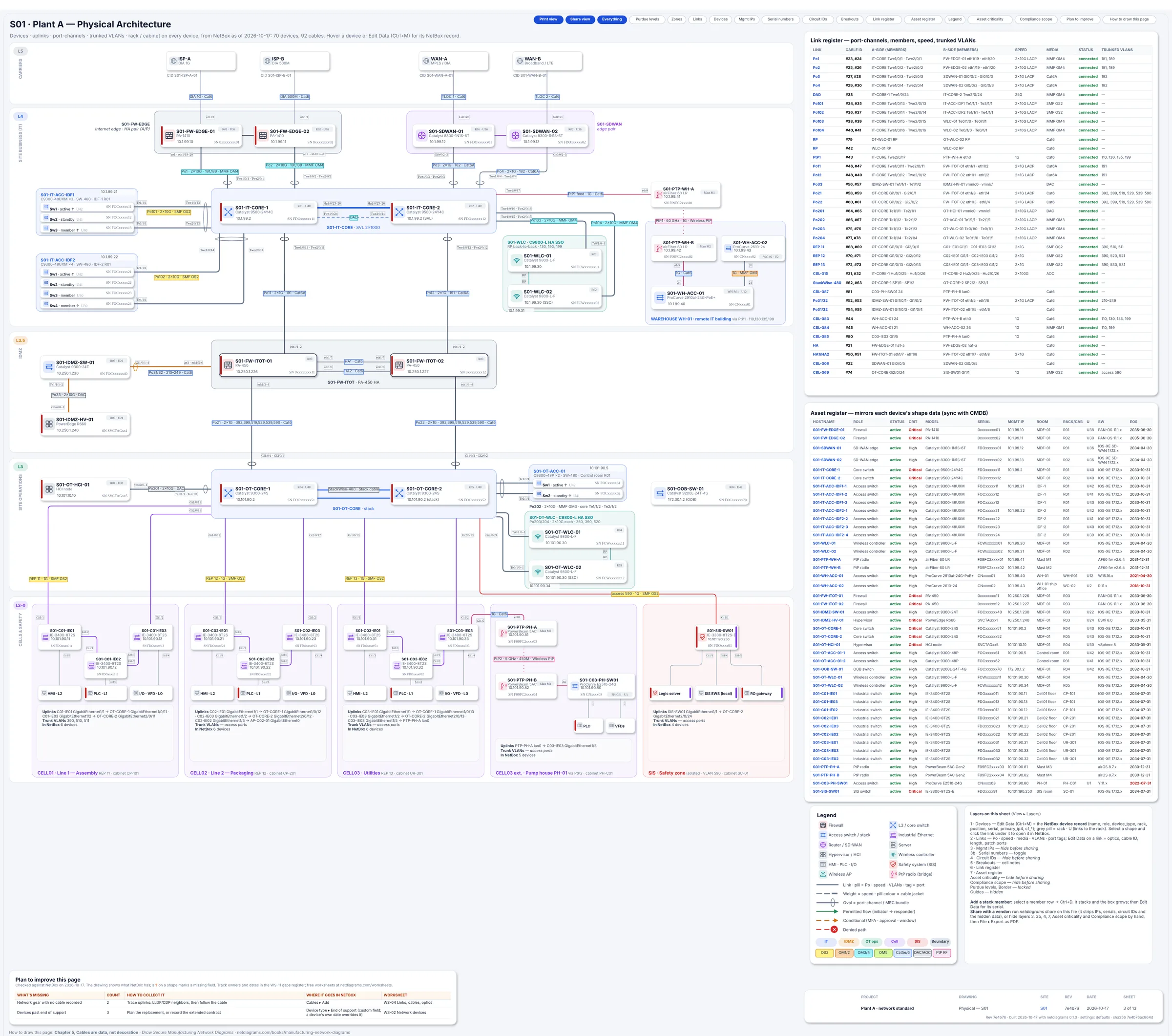
Figure F.1. The physical page of the S01 standard built from Plant A's NetBox data: devices in their Purdue bands from L5 carriers down to the cells and the safety zone, with the link register and asset register on the right rebuilt from NetBox cables, interfaces and devices.
The drift report from a site where only steps 1 to 6 are done (excerpt; the dashed list runs to 93 lines):
- Data quality: 58/100 (sheet 1c; quality.json next to the drawing)
- Devices matched by name: 70
- Devices placed in a template slot of the same role: 0
- Template devices removed (not in NetBox): 0
- Cables matched: 0 · drawn from NetBox: 0 · drawn but not in NetBox (shown dashed): 93
- Interfaces updated: 0 · tags rewritten: 44
- Tables rebuilt from NetBox: 10
- Fields updated: 36

## In NetBox, no slot on the drawing (in the tray below the physical page)

- S01-IDMZ-HV-02
- S01-OT-HCI-02

## In NetBox, no slot on the wireless sheet (in the tray below it)

- S01-OT-WLC-03

## Links on the drawing with no NetBox cable (dashed)

- S01-CBL-005
- S01-CBL-006
- S01-CBL-007
- S01-CBL-008
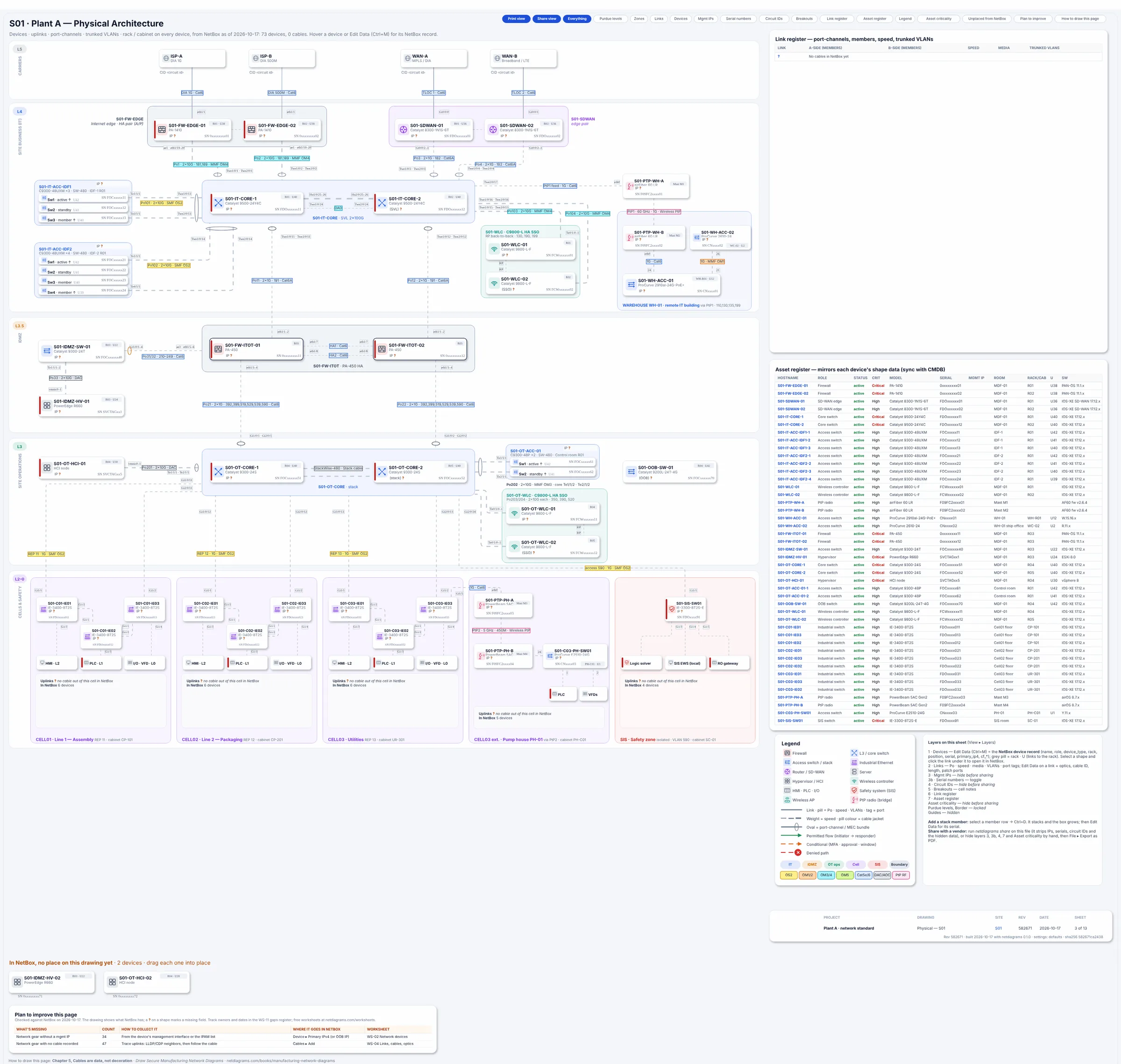
Figure F.2. The physical page built from the same half-imported site. Every link is dashed, every device card shows "IP ?" instead of a management IP, the link register says "No cables in NetBox yet", and two servers with no slot wait in the tray at the bottom under "In NetBox, no place on this drawing yet". The asset register is filled, because devices, racks and serials were imported in step 6.
F.11 Keeping it current
A move ends. A plant doesn't. NetBox stays true when updating it is part of the work, not a project after it.
- The person who makes the change updates NetBox, as part of closing the change. If your plant uses a management-of-change form, add one line to it: "NetBox updated (link)". A change isn't closed until the link is there.
- Integrators deliver in your columns. Put this guide's CSV formats in the project specification, so the new line's devices, labeled cables and addresses arrive as import-ready files at handover. Read every row, as with your own.
- Status tracks reality. A new cell goes in as
plannedand turnsactiveon go-live day. A removal goes todecommissioningwhen scheduled and is deleted once it has left the building. - Run NetDiagrams on a schedule, nightly in a pipeline with
NETBOX_URLandNETBOX_TOKENor by hand every Monday, and read the drift report weekly. Each quarter, walk one area with a clipboard and check NetBox against the cable labels.
Nothing in this routine touches a device. It just needs everyone who changes the plant to change the database too.
Quotable: Label the boxes before you pack them. NetBox can't unpack a box called MISC either.