The cold open
Dawn over the MDF. It is 7:52 on the first day of school, and across the parking lot eighteen hundred Chromebooks are stirring from a summer of hibernation in a charging cart.
Watch this one. It joins the Wi-Fi, takes an address and looks around. In a flat network the view is extraordinary. Teachers' laptops graze in the same subnet. The copier in the workroom answers with a login page. Further off, the nurse's printer. And there, at the edge of the herd, an HVAC controller that has been listening on the same broadcast domain since 2014, waiting for anyone at all to say hello.
Nature is not cruel. It is merely routed.
None of this needs a curious student. It needs one infected browser extension or one phished account, and a network where every device sees every other. A flat school network isn't dangerous because of who sits at the keyboard. It's dangerous because of what's in reach.
In the network this chapter describes, the documentary is much shorter. The Chromebook wakes, finds the internet through the district's web filter, and finds nothing else, because nothing else lives in its habitat. That's school network segmentation: deciding which devices share a habitat, which never meet, and where the one supervised crossing is.
This chapter is the field guide: the seven zones a K-12 district or small college needs, the five trust tiers that group them on a drawing, and the rules that keep them apart. Chapter 4 puts them on the logical page.
Zones, VRFs and tiers in one minute
A zone is a group of devices that share an owner, a purpose and the same protection, so they get the same rules. A zone is a security decision, not a VLAN: one zone usually holds several VLANs.
A VRF (virtual routing and forwarding instance) is a separate routing table on a layer 3 switch. Two VLANs in the same VRF can route to each other on the core. Two VLANs in different VRFs can't, not even by accident, unless something outside the core joins them. In this book every zone has its own VRF, and the "something outside" is always the firewall pair.
A trust tier is a band on the drawing that groups zones the reader should think about together. Tiers help people read the page. Zones and VRFs are what the network enforces.
A field guide to the species of the school network
Every zone below is real in Harbor Pines High School (HS1), the fictional 9-12 school of about 1,850 students that ships with NetDiagrams as its education sample. The species notes are ours; the VLANs and flows are from the drawing.
STAFF · Staff and classrooms. Tier T1. Habitat: VLANs 110 STAFF-WIRED, 120 STAFF-WIFI, 130 VOICE, 140 PRINTERS and 150 CLASS-AV, gatewayed on the core in VRF STAFF. Diet: the student information system (SIS), email and the learning platform in the cloud; directory, file and phone services at the district data center. Field marks: teachers' laptops, IP phones, workroom copiers and the classroom display that every lesson depends on. Behavior: large and busy. Sees camera video only through the recorder, and only in approved groups.
ADMIN · Front office and student services. Tier T1. Habitat: VLANs 160 OFFICE and 165 HEALTH, in VRF ADMIN. Diet: student records sync and health records, to the district data center only. Field marks: front office PCs, the nurse's office, counseling and the visitor-desk badge printer. Behavior: small, quiet and carrying the most sensitive data in the building. Shares a tier with STAFF, never a routing table.
STUDENT · Student devices. Tier T2. Habitat: VLANs 210 STUDENT-WIFI (a /19, the biggest in the school), 220 STUDENT-LABS and 230 TESTING, in VRF STUDENT. Diet: the web, through the district filter; the learning platform, email and the state testing platform. Field marks: the 1:1 Chromebook, computer labs, the testing room. Behavior: arrives in enormous numbers, often on a Tuesday, often all at once. Migrates seasonally between charging cart and backpack.
GUEST · Guests and personal devices. Tier T2. Habitat: VLANs 310 GUEST-WIFI and 320 BYOD, in their own 172.20.0.0/16 address space, with the firewall as their gateway. Diet: the internet, filtered, at 10 Mb/s per device. Nothing else. Field marks: visitors' phones, personal phones, event Wi-Fi in the gym and auditorium. Behavior: appears in great flocks on concert nights and at home games, then vanishes completely.
SVC · School services. Tier T3. Habitat: VLANs 510 SERVERS and 520 VMS, in VRF SVC. Field marks: the camera recorder, the door access server, the PA and bell server, the HVAC front end, local cache and print. Behavior: the meeting point. Staff come here to watch cameras; the building systems answer only to it. Nothing passes straight through.
BLDG · Building systems. Tier T3. Habitat: VLANs 410 CAMERAS, 420 DOOR-ACCESS, 430 HVAC-BAS and 440 PA-CLOCKS, in VRF BLDG. Field marks: cameras, door controllers, HVAC controllers, PA speakers, bells and clocks. Behavior: long-lived, slow to update and inclined to phone home to a cloud nobody remembers subscribing to. Harmless in its enclosure. Do not feed from the internet.
MGMT · Network management. Tier M. Habitat: VLANs 900 NET-MGMT and 910 AP-MGMT, in VRF MGMT. Field marks: the management interfaces of switches, access points, wireless gateways and firewalls, plus the out-of-band switch. Behavior: nocturnal. Visited only by the district network operations center (NOC). Holds the keys to every other enclosure.
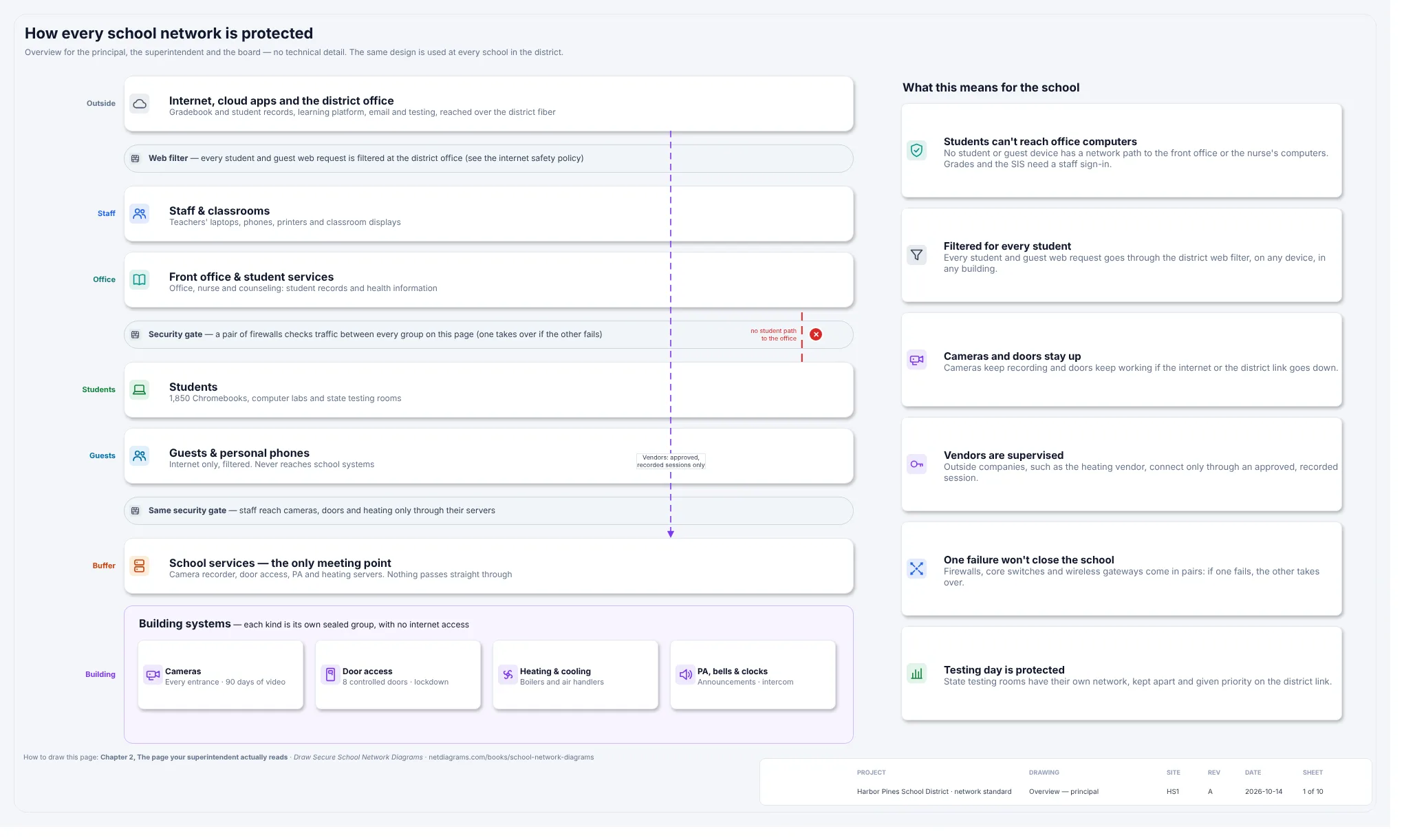
Figure 3.1. Sheet 1 of the education sample (netdiagrams sample --profile education), written for the principal and the board. Six of the seven zones in plain words (management stays off the board's page): staff and classrooms, front office, students, guests, school services ("the only meeting point") and building systems, with a "Security gate" bar marking where a pair of firewalls checks traffic, a "no student path to the office" marker, and the district web filter sitting between every student and guest and the internet.
Figure 3.1 has no VLAN IDs, subnets or model numbers. It's the zone model with the jargon removed, the page Chapter 2 is about. Get the zones right and the board member with this page and the engineer with the logical page are describing one school.
The five trust tiers
The seven zones group into five tiers, drawn as horizontal bands from top to bottom:
| Tier | Band | Zones | Who it serves |
|---|---|---|---|
| OUT | Internet and district WAN | (outside the school) | Cloud apps, the district data center, vendors' remote access |
| T1 | Staff and front office | STAFF, ADMIN | Adults who handle grades, records and money |
| T2 | Students and guests | STUDENT, GUEST | The largest device populations, least managed by you per device |
| T3 | Services and building | SVC, BLDG | Servers and the physical building: cameras, doors, heat, bells |
| M | Management | MGMT | The network itself |
A tier is not a permission. T1 sits above T3 on the drawing, but staff don't reach the building systems. In Harbor Pines a teacher's laptop going straight to a camera is a denied flow. The tiers order the page for the reader; they don't grant anything.
Two zones in one tier still don't talk. STAFF and ADMIN share T1 because the same kind of adult uses both, but they are separate VRFs, and the sample's zone matrix shows no flow between them. Teachers reach grades through the SIS in the cloud, not through the front office's PCs.
The rules
Rule 1. Students and staff never share a VRF.
This is the rule the rest of the chapter hangs on. STAFF and STUDENT each get their own routing table on the core. In Harbor Pines, VLANs 110 to 150 are gatewayed in VRF STAFF, and VLANs 210 to 230 in VRF STUDENT. The core routes inside a VRF and never between them.
Why a VRF and not an access list on each student VLAN? A VRF fails closed. Add a student VLAN next summer, put its gateway in VRF STUDENT, and it reaches nothing on the staff side with no extra rule. With access lists, the twenty-seventh VLAN is the one somebody forgets.
On the staff side are laptops with gradebook sessions open, the phones and the printers that print report cards. The register says it in one row, "F03, STUDENT to STAFF, anything else: deny". The VRF keeps the two apart on the core, so the only way across is through the firewall, and the firewall reads F03 after any exception above it.
There is one supervised crossing, and it shows what an exception looks like. Students cast to the classroom display (F05), which lives in STAFF on VLAN 150 CLASS-AV. That flow is conditional: same room only, through an mDNS gateway, on TCP 8008-8009, plus UDP for mirroring a tab or screen. It's written down, it has a condition, and it crosses the firewall like everything else. Exceptions such as F05 sit above the F03 deny in the firewall's rulebase, because the firewall stops at the first rule that matches.
Rule 2. Student records get their own zone, even from staff.
The front office, the nurse and counseling hold the building's most sensitive data: student records and health information. They're adults on managed PCs, so it's tempting to put them in STAFF. Don't.
A classroom laptop gets left logged in during a fire drill. The PC that holds a health record shouldn't be one routing hop from it. In Harbor Pines, ADMIN's only permitted flow of its own is F10 (besides the shared DHCP, DNS and time row, F22): student records sync and health records to the district data center, on TCP 443. Students are denied outright (F04, "records stay in the office"), and staff have no flow requested at all.
Privacy laws such as FERPA and your state's student data rules are the context, not the reason the rule works. A small zone with one way out is easy to defend and easy to show. What the law asks of your district is a question for its counsel.
Rule 3. Guests get the internet, filtered, and nothing else.
GUEST is the simplest zone to describe and the easiest to get wrong. In Harbor Pines it holds two VLANs: 310 GUEST-WIFI (the HPSD-GUEST SSID, open with a captive portal and OWE encryption) and 320 BYOD (HPSD-BYOD, WPA3-Personal with a rotating key).
Four design choices make it hard to misuse:
- No gateway on the core. Both guest VLANs are gatewayed on the firewall itself (
FW-01 .1 · GUEST). They cross the core at layer 2 only, so there's no core routing table a guest could ever land in. - Its own address space. Guests live in 172.20.0.0/16, not in the school's 10.20.0.0/16. The district's guest plan is 172.(18+site).0.0/16, so HS1, site 2, gets 172.20. A guest address is recognizable in any log at a glance, and so is its school.
- One permitted flow. F06: the web, filtered, 10 Mb/s per device. F07 denies every school zone.
- Guests can't see each other. Both guest SSIDs turn on client isolation at the wireless gateways, so a phone on HPSD-GUEST reaches the internet and nothing on the same VLAN, not even the phone in the next seat. The firewall can't do this part: two guests on VLAN 310 never cross it. Write it in the SSID row on sheet 3d (Chapter 8).
A teacher's personal phone belongs here too.
Rule 4. Building systems are their own zone, and only their SVC server reaches them.
Cameras, door controllers, HVAC, PA and bells aren't laptops. A vendor installs them, they run for a decade, they're rarely updated and they can't run your endpoint agent. Some protect people physically: the door system runs the lockdown. They get a zone of their own, BLDG, and in Harbor Pines each kind gets its own VLAN inside it (410 to 440), so a camera and a door controller don't share a broadcast domain either.
The pattern that makes this work is SVC as the meeting point. Every building system has a server: the camera recorder, the door access server, the PA and bell server, the HVAC front end. The server lives in SVC. The devices live in BLDG. People talk to the server; only the server talks to the devices.
In the Harbor Pines register that pattern is five rows:
| Flow | From | To | What | Verdict |
|---|---|---|---|---|
| F11 | STAFF | SVC | Camera viewing (admins and SRO group) | conditional |
| F12 | STAFF | BLDG | Straight to a camera or controller | deny |
| F13 | SVC | BLDG | NVR pulls camera video, TCP 554 | permit |
| F14 | SVC | BLDG | Door server to door controllers, TCP 3001 (vendor) | permit |
| F15 | BLDG | INTERNET · CLOUD | Cameras and controllers phoning home | deny |
The vendor gets in the same way. F16 lets the HVAC vendor reach the SVC front end through the district's remote access broker, in an approved window. The vendor's laptop never lands in BLDG, and the camera never reaches the internet. The district standard says it in one line: "No internet; reached only from their SVC server."
A bonus: because the recorder and door server sit in the school, cameras keep recording and doors keep working when the district link goes down.
Rule 5. The firewall pair is the only path between zones.
Every VRF on the core has exactly one way out: a small /29 transit VLAN, numbered x99 (199 for STAFF, 299 for STUDENT and so on), to the firewall pair. The core holds the gateways and routes nothing between VRFs. The firewall holds every rule.
In Harbor Pines that pair is HS1-FW-01 and HS1-FW-02, two FortiGate 200F firewalls in high availability in MDF-101, active and passive. If FW-01 fails, FW-02 takes over in about a second with sessions synced, and nobody notices. The last rule on the pair is "deny any any, logged".
Why one path, and not access lists spread across the core, the wireless gateways and the firewall? One path means one place to read the rules, one log to search and one register to review each August. When an insurer asks how a student device is kept from the nurse's office, "the firewall, rule F04" is an answer. "Several devices, in various ways" isn't.
Rule 6. Filtering is a property of the zone, not of the device.
In the US, schools that take E-Rate discounts for internet access or internal connections generally must certify compliance with the Children's Internet Protection Act (CIPA): a technology protection measure (a filter) on every internet-connected computer, covering adults as well as minors, and an internet safety policy that includes monitoring minors' online activities and educating them about online behavior, including cyberbullying. What exactly your district must do, and how it's documented for E-Rate, is a question for your E-Rate consultant or counsel. This book only covers how the network shows it.
The network shows it best when filtering follows the zone. In Harbor Pines every STUDENT and GUEST web request leaves the school toward the district office, where the web filter sits, and the district edge note on the logical page says "no internet breakout at schools". The standards table adds that student traffic is "filtered at the district office; SSL inspection on district Chromebooks".
Drawn that way, the filtering question has a visual answer: every arrow out of T2 passes the filter. The overview's promise that every student and guest web request is filtered "on any device, in any building" is only true because of the zones.
In the building, that is. A 1:1 Chromebook that goes home leaves every zone, so it also needs a filter that travels with the device, such as a policy pushed from the device management console. Name it on the "Student traffic" standard, so the drawing doesn't promise more than the building can keep.
State testing is a variation on the same idea. The TESTING VLAN (230) sits inside STUDENT, and flow F18 limits testing rooms to the state testing platform's named hosts, from an allow-list the district refreshes each spring.
Rule 7. Management is nobody's neighbor.
The management interfaces of your switches, access points, gateways and firewalls are the keys to every other zone. They get MGMT, with VLANs 900 NET-MGMT and 910 AP-MGMT, and one permitted flow: F17, the district NOC managing switches, APs and firewalls over SSH, HTTPS and SNMPv3 (older SNMP versions send their community string in clear text, which on a management network is a key left in the lock). The district standard adds out-of-band access for the firewall and core.
No staff laptop is on that list, including the network team's own. Management happens from the NOC subnet or out of band, and the drawing says so.
Where does this thing go?
Zone arguments are about a handful of awkward devices. Place them by what they are and who answers for them, never by which closet they sit in. A portable classroom fed by a cable through a window is a location; its laptop is still STAFF and its Chromebooks still STUDENT.
The Harbor Pines drawings settle these:
| Device | Zone | Why |
|---|---|---|
| Classroom display | STAFF, VLAN 150 CLASS-AV | The teacher's tool; students reach it only by casting (F05) |
| Nurse's office PC | ADMIN, VLAN 165 HEALTH | Health records stay with student records |
| Event Wi-Fi in the gym | GUEST | Strangers, internet only |
| Camera recorder | SVC, VLAN 520 VMS | The server the cameras answer to |
| Door controller panel | BLDG, VLAN 420 DOOR-ACCESS | A building device; only the door server reaches it |
Whatever you can't place in one sitting goes on a list with an owner. "The library kiosk" is a fine gap; a kiosk dropped into STAFF because the port was free isn't.
That's also why a free port shouldn't put anything anywhere. Disable unused jacks or park them on a VLAN that routes nowhere, and put 802.1X on classroom ports (MAC authentication for devices that can't do it), so whatever gets plugged in lands in the zone its login earns, not the one the port happened to have.
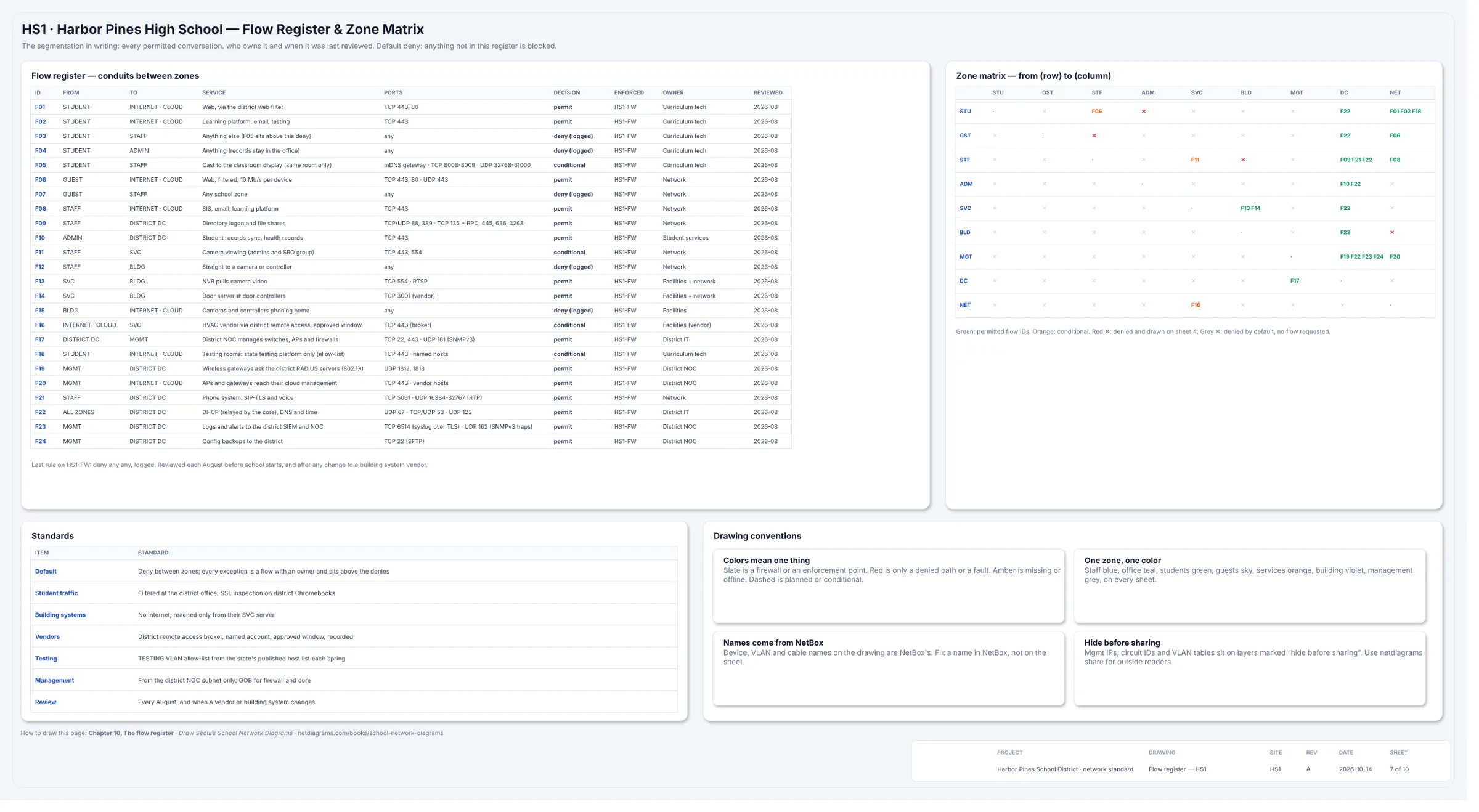
Figure 3.2. Sheet 7 of the education sample: the flow register F01 to F24 with decision, enforcing device (HS1-FW on every row), owner and review date, and the zone matrix from row to column. Green flow IDs are permitted, orange are conditional, a red × is denied and drawn on sheet 4, and a gray × is denied by default with no flow requested. The STF to ADM cell is a gray ×; BLD to NET is red.
Figure 3.2 is the seven rules written down. Read the matrix by row: STU reaches NET (F01, F02, F18) and casts to STF (F05); BLD reaches nothing. Chapter 10 covers this sheet.
In NetDiagrams
NetBox has no built-in security zone. NetDiagrams reads zones from tags and fields you add, and writes the import files to add them for you.
Choose the school standard. A site uses it when its settings say "profile": "education": in netdiagrams.json, in the netdiagrams JSON custom field on a NetBox region, site group or site, or with --profile education. Set it on the district's region and every school inherits it.
Set up NetBox. Run:
netdiagrams netbox-setup --profile education
The output is a set of numbered CSV files for NetBox's Import buttons, with a README.txt mapping each file to its button. When it can read your NetBox it leaves out what's already there; for a NetBox that has none of it yet, it reports:
Wrote 6 import files to netbox-setup/ (69 objects). Import them in NetBox in order; netbox-setup/README.txt says where. Or run netdiagrams netbox-setup --apply to create them through the API.
The 69 objects are twelve choice sets, thirty-two custom fields (netdiagrams for settings, sw_version and criticality for the asset register, end_of_sale, end_of_support and eol_notice for each model's lifecycle, gateway for subnets whose gateway address isn't in NetBox, the eleven wireless fields from Chapter 8 support_contract and the thirteen audit evidence fields from Chapter 13), the seven zone tags and the thirteen school device roles (firewall, core-switch, access-switch, wireless-controller, access-point, ptp-radio, hypervisor, nvr, camera, access-control, bas-controller, pa-system, oob-switch), plus three inventory item roles (Transceiver, Power supply and Fan, which sheet 3b reads in Chapter 6) and two contact roles, Asset owner and Custodian. Purdue level and security level fields aren't offered for schools. One real line from 3-zone-tags.csv:
Zone STUDENT,zone-student,ff9800,"Security zone, trust tier T2: STUDENTS · GUESTS","dcim.device,dcim.location,ipam.vlan,ipam.prefix,ipam.vrf"
Each tag can go on devices, locations, VLANs, prefixes and VRFs, and its description names its tier. --check compares and changes nothing; --apply creates what's missing through the API with a token that can write, and never updates or deletes. It's the only command that writes to NetBox. Everything else in NetDiagrams only reads.
Tag what the zone is. NetDiagrams finds a device's zone in this order: a security_zone custom field (or the field your settings name), then a zone-* tag on the device, then the nearest location up the tree with a zone field or tag. For VLANs it also accepts the VLAN role, a VLAN group named zone-*, or the zone or VRF of the prefix.
Location inheritance helps less in a school, because one IDF holds three zones' gear. Use it for rooms that are one zone, and tag the rest by device; NetBox's bulk edit tags every camera in the school at once.
Check before you draw. netdiagrams doctor draws nothing and says where it found each zone. On the half-finished "day one" export of Harbor Pines it reports:
Zones
  Read from: field security_zone, iec62443_zone, ot_zone on 0 devices, zone-* tags on 37, the location tree on 0, nothing on 8.
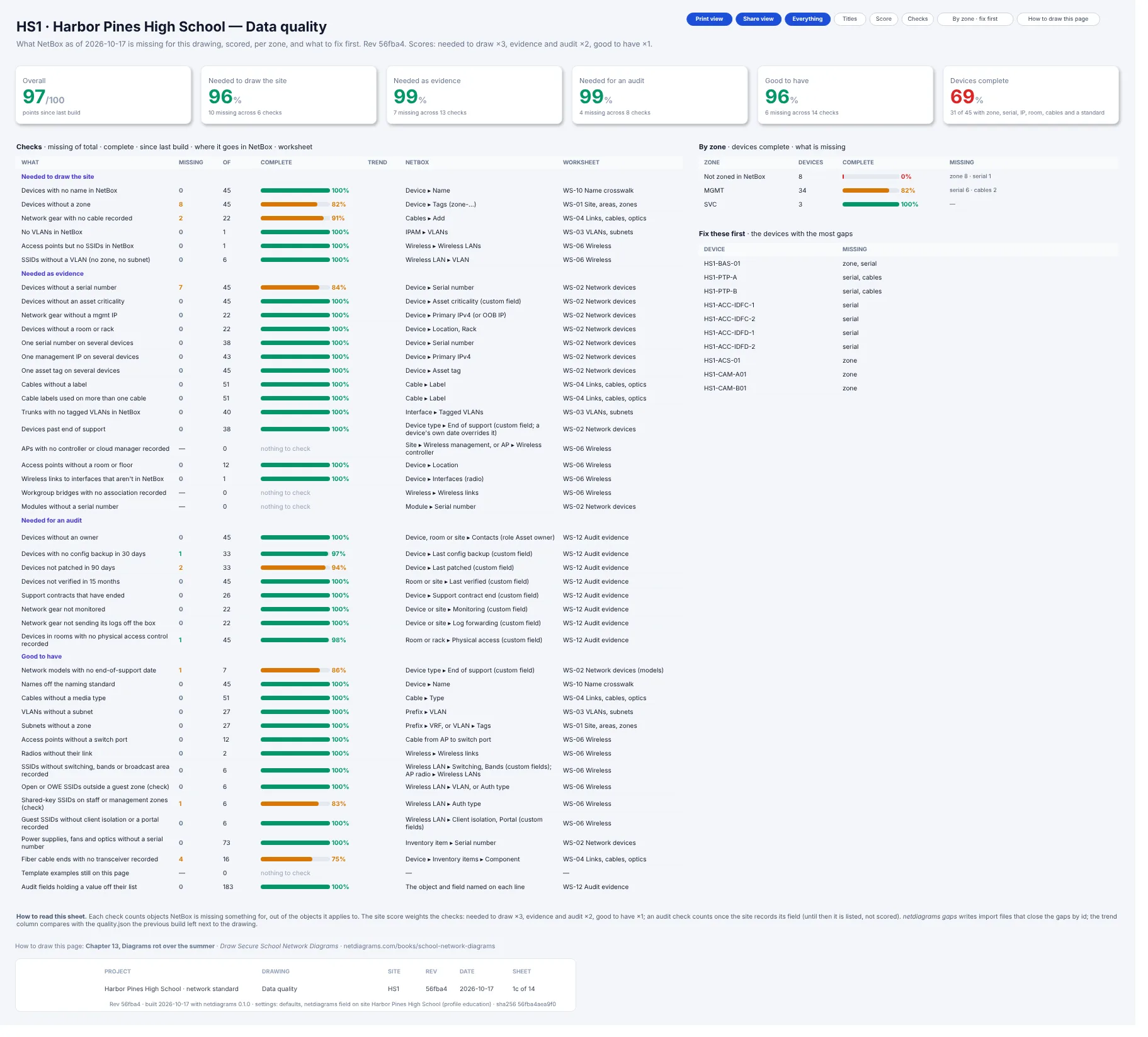
Figure 3.3. Sheet 1c, Data quality, built from the day-one Harbor Pines export. Overall 97/100. "Devices without a zone" shows 8 of 45 missing; the By zone table puts those 8 in a "Not zoned in NetBox" row at 0% complete, and Fix these first opens with HS1-BAS-01 (zone, serial) and lists HS1-ACS-01, HS1-CAM-A01 and HS1-CAM-B01 further down, each missing its zone.
The eight are the six cameras, the door controller panel and the HVAC controller: the building systems, the zone most often left untagged because a vendor installed it. "Not zoned in NetBox" is the most useful row on the sheet.
Lay out the tiers. netdiagrams draft --profile education lays out a site with no drawing yet in the five trust tiers, each zone in its band. Then build the ten-sheet set:
netdiagrams
To see a finished school, netdiagrams sample --profile education writes sample-harbor-pines-hs.drawio, the drawing in Figures 3.1 and 3.2.
No NetBox yet?
Add a zone column to the list you keep now: the asset spreadsheet, the port map, the vendor's handover sheet. Use the seven names exactly so nobody invents an eighth called "MISC". Fill it for every VLAN, then for every device that isn't someone's laptop.
Then draw the skeleton. netdiagrams blank --profile education -o my-school.drawio writes one empty zone per tier: "Internet & district WAN", "Staff & front office", "Students & guests", "Services & building" and "Management". Split them into the seven with shapes from the netdiagrams stencils library.
In NetBox the zone column becomes the zone-* tag, and every build sorts the devices for you; anything untagged lands in "Not zoned in NetBox", your empty cells drawn as a to-do list. Appendix F covers the setup.
Missing pieces?
The zone model asks for very little to start: the seven zones, and for each device you know of, the zone it belongs in.
A zone you're sure of but can't yet bound (say, the building systems behind a vendor's switch you've never logged into) still gets its box, with UNKNOWN G-021 where its VLANs should be. A device placed on a hunch, such as the scoreboard controller you think the athletics department owns, keeps its place with ? G-022 beside the zone.
Zones go on worksheet WS-01 in Appendix G (site, areas and zones); each gap gets a WS-11 row. For building systems, ask facilities and the camera and door vendor for their handover pack. It has every address and never the zone, which is your call anyway.
Monday morning
This week, in your own district:
- Write the seven zones down with one line each saying what lives there, using the field guide above as the template.
- Check Rule 1 on your core. List the VRFs. If students and staff share one, or there are no VRFs at all, that's your summer project.
- Find your building systems. Cameras, doors, HVAC, PA and bells: which VLAN, which server, and can any of them reach the internet?
- Count the paths between zones. Anything that crosses without passing the firewall pair (an access list on the core, a second interface on a server) goes on a list.
- Run
netdiagrams netbox-setup --profile education, import the files, tag one zone's VLANs and devices, and runnetdiagrams doctor. No NetBox yet? Add the zone column to your spreadsheet and fill it for the building systems first.
Quotable: Segmentation isn't about distrusting students. It's about making sure a Chromebook's whole world is the internet and the filter.
Next: Chapter 4, "Zones on paper: the logical page", where every VLAN, transit and firewall interface is assigned to one of the seven zones.