The cold open
A visitor arrives ten minutes early for a two o'clock meeting and asks for the Wi-Fi. The receptionist turns the card on the counter around. It says GUEST, then a password, then, in smaller print, the name of the staff network and its password too, "in case the guest one is slow".
The guest one is slow. The visitor joins the other one.
Nothing bad happens that afternoon. That is the trouble with a flat network: nothing bad happens for years. The visitor's laptop can see the file server, the camera recorder's login page, both printers and the box that runs the door locks. It touches none of them. It just could.
Three months later the cyber insurance renewal asks, on page four: "Is your network segmented? If yes, attach a diagram." Someone opens the drawing the previous IT person left. It shows a router in the middle of the page with a line to every device in the office: laptops, printers, the cameras, the phones, the TV in the big meeting room. Every line goes to the middle. It looks exactly like the tangle of cables behind the reception desk, and for the same reason: everything is plugged into one thing.
That drawing is honest, which is more than most. It says there are no zones. The renewal wanted to hear something else, and so, it turns out, does the managing partner.
This chapter is about designing the small office network so that the honest drawing is also a good one: the zones an office needs, why they all meet at one firewall, what changes at 20 people and at 300, and how to write it down so a drawing tool, an MSP and the next person read it the same way.
Zones, VLANs and the firewall, in one paragraph each
A zone is a group of devices that follow the same rules about who they may talk to. Staff laptops are one zone. Guests' phones are another. A zone is a decision about trust, written down.
A VLAN (virtual LAN) is how a switch keeps groups apart on the same cables. Each VLAN is its own little network with its own range of addresses. A zone usually holds one VLAN, sometimes two or three. A VLAN never belongs to two zones.
The firewall is where zones meet. Every packet that leaves one zone for another passes through it, and its policy decides whether that packet may go. In a small office, one firewall (or one pair of them) does this for every zone at once. That is the whole design in a sentence: one firewall, many zones, every crossing inspected.
The office zone model: five bands, ten zones
The examples in this book come from Alder & Finch, a fictional engineering and architecture consultancy. Its headquarters, site O01, holds about 140 staff on two floors of a shared office building, with reception, six meeting rooms, a print corner on each floor and a small comms room on floor 2. A 15-person branch, O02 Riverside, sits across town. Email, files and meetings are cloud services, about 30 people work from home on a given day, and a managed service provider (MSP) runs the network.
Its network has ten zones, stacked in five bands from the most exposed at the top to the most sensitive at the bottom:
| Band | Zone | What lives there | The one-line rule |
|---|---|---|---|
| OUTSIDE | Internet and providers | ISP-A, ISP-B, SaaS, the cloud VNet, home workers | Untrusted. Everything from here ends on the firewall. |
| EDGE | Firewall and remote access | The firewall HA pair, the VPN address pool | The one place zones meet. Every inter-zone packet is inspected here. |
| STAFF & SERVICES | Staff | Laptops and desktops, wired and on the staff SSID | Reaches the internet, servers and printers. Nothing reaches into it. |
| Voice | Desk phones, meeting-room phones | Talks to the cloud phone service only. | |
| Printers | Multifunction printers | Answers staff. Starts nothing, except scan-to-email out. | |
| Servers | Virtualization hosts, the NAS, backup | Reached from staff and VPN users on named ports. Backs up to the cloud. | |
| SHARED & GUEST | Meeting rooms | Room systems and displays | Reaches the cloud meeting service. Staff may cast to it. |
| Guests | Visitors' phones and laptops | Internet only. Clients can't see each other. | |
| BUILDING & MANAGEMENT | Building systems | Cameras, the NVR, door controllers | Cameras talk to the NVR only. The NVR has no internet. |
| Network management | Firewall, switch, AP, UPS management; the out-of-band console | Reached only by IT and the MSP, through the VPN with MFA. |
Read the right-hand column on its own and you have the office's security policy in ten lines. "Guests get the internet and nothing else" is a sentence a managing partner can agree to, an MSP can build and an insurer can check.
The order is deliberate: strangers at the top, staff in the middle, shared spaces below them, and the building's systems and the keys to the network at the bottom, where nothing should fall into them by accident.
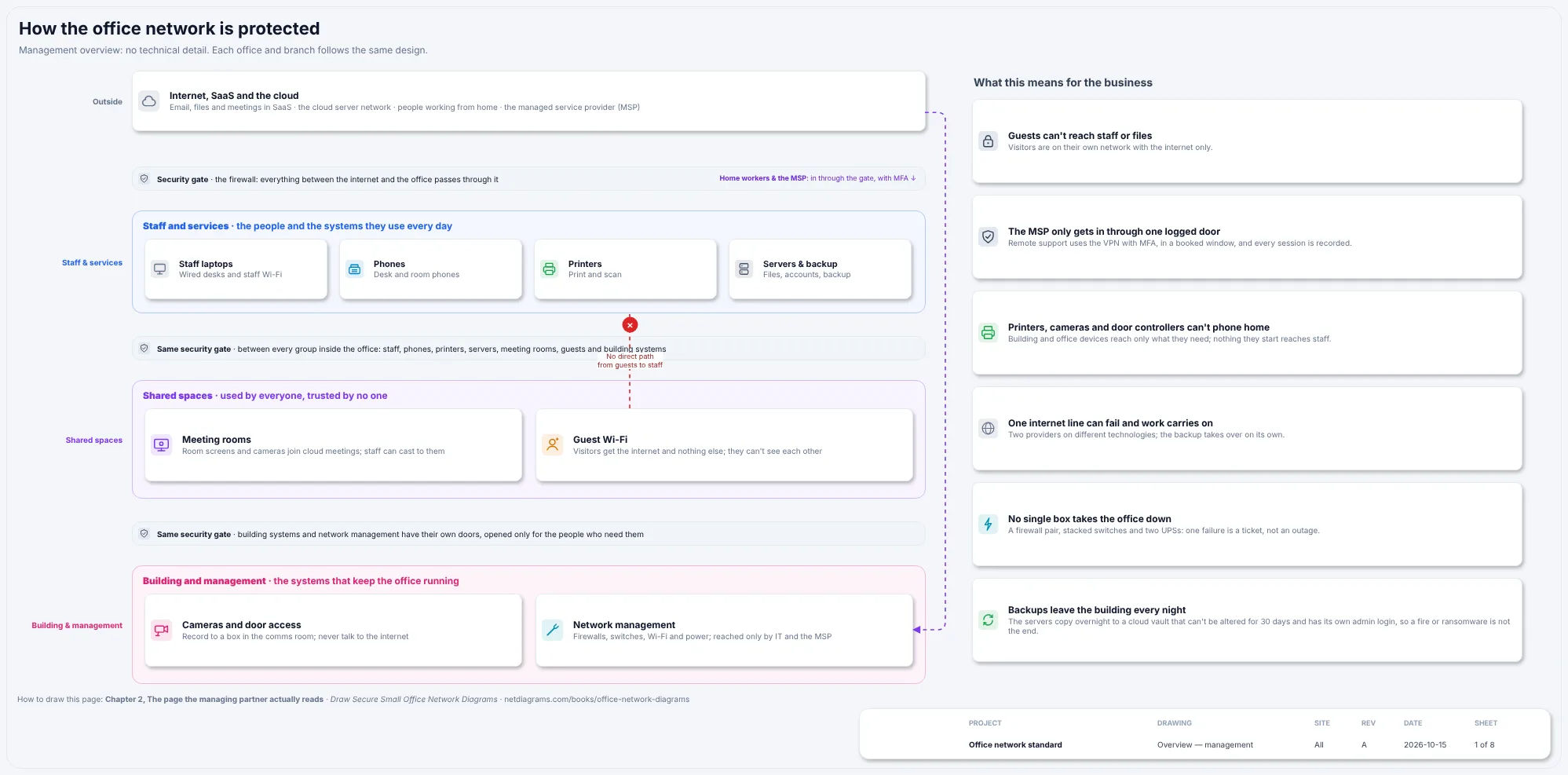
Figure 3.1. Sheet 1, "How the office network is protected", from netdiagrams sample --profile office. The same bands without the jargon: Outside, a security gate (the firewall pair), Staff and services, Shared spaces, Building and management. The MSP and home workers come in through the gate with MFA, and a red dashed "no direct path" runs from guest Wi-Fi to staff. The cards on the right say what each zone means for the business.
Figure 3.1 has no VLAN numbers or addresses, and doesn't need them. The partner reads this page, the MSP reads the logical page, and both are looking at the same office.
A recipe for one office network
Before the rules, the design as a recipe card, the kind that gets passed around and spattered with sauce.
Small office network. Serves 20 to 300.
Ingredients: one firewall (two, if the office can't stop for a morning); one switch stack per floor; one or two internet lines; a VLAN per kind of device; a pinch of patience for the day the cameras arrive.
Method: 1. Separate the guests from the staff before the guests arrive. Separating them afterwards takes far longer and is less popular. 2. Place the printers in their own dish. They will try to mix with everything. Do not let them. 3. Keep the cameras and the door controller away from the internet. They will say they need it. They need the recorder. 4. Fold every VLAN into the firewall. Do not let the switch do this step, however eager it looks. 5. Set the management network aside, covered, where only IT and the MSP can reach it. 6. Taste the guest Wi-Fi from a visitor's phone. It should taste of the internet and nothing else.
Serving suggestion: with a drawing. Leftovers keep for years if the drawing is kept with them.
The rules
Rule 1. The firewall routes every VLAN.
A VLAN keeps traffic apart, but only until something routes between VLANs. Whatever does that routing decides whether the zones are really separate.
Most office switches can route. Turn it on (it's a few lines of configuration on most layer 3 switches), give each VLAN a gateway address on the switch, and traffic from the staff VLAN to the printer VLAN goes switch to switch at full speed. It never meets the firewall. The firewall can carry a beautiful rule that says "printers start nothing toward staff", and that rule is decoration, because the packets go around it.
Alder & Finch does it the other way. Its core switch stack is layer 2 except for its own management address. Every VLAN's gateway is on the firewall HA pair, so every packet between zones crosses a policy.
Three things follow, and all three should be on the drawing:
- Inside a zone, the firewall sees nothing. Two laptops on the staff VLAN talk directly through the switch. That's acceptable for staff, as long as each laptop's own firewall refuses connections from its neighbors (Chapter 9), and wrong for guests, which is why the guest Wi-Fi isolates clients from each other (Rule 3).
- The firewall carries the office's internal traffic, not only its internet traffic. File shares from staff to the servers cross the firewall. At HQ each firewall connects to the core over two 10 Gb/s links bundled together; size yours for the traffic between zones, not just the internet line.
- One gateway per VLAN, and it's the firewall's. A second gateway on the switch, added "temporarily" for one awkward printer, quietly creates the bypass this rule exists to prevent. Chapter 4 makes the gateway a column on the logical page so the second one shows.
If your office routes on a core switch and that won't change this year, draw it honestly: the core is then a boundary device, and its access lists are part of the policy. Undrawn routing is where segmentation goes to be assumed.
Rule 2. A zone is a promise about who starts the conversation.
Write each zone's rule as who may start a conversation with whom. "Staff reach printers" is a rule. "Printers and staff are connected" is a description of a cable.
Direction matters. A laptop opening a print job is normal. A printer opening a connection to a laptop is not, and the printers rule in the table says so: "Answers staff. Starts nothing, except scan-to-email out." The one exception is named, with its destination.
Every one-line rule in the zone table follows this pattern. When you can't write the line, you haven't designed the zone yet; you've only named it.
Rule 3. Give a zone to anything you don't fully control.
The easiest way to choose zones in an office is to ask, for each kind of device: "who looks after this, and would I trust it next to the partners' files?" Five kinds of device fail that test in nearly every office, and each gets its own zone.
Guests. Visitors' phones and laptops are devices you have never seen and never will again. The guest zone gets the internet and nothing else, rate-limited so a large download in reception doesn't slow the office. On the guest Wi-Fi, clients are isolated from each other, so one visitor's laptop can't see the next. At Alder & Finch guests also get addresses from a different private range from everything else, so a guest address is recognizable at a glance in any log.
Printers. A multifunction printer is a small computer with a web server, an email client, a scanner and a firmware update schedule nobody in the office controls. It needs to receive print jobs and send scans. It doesn't need to browse the staff network, so it doesn't get to.
Cameras, the recorder and the door controller. Building systems are often installed by a specialist who wants "a port and the internet". The cameras need to reach the recorder (the NVR), and that's all. At HQ the cameras talk to the NVR only, and the NVR, the cameras and the door controller have no internet at all. A camera that can't start a connection out can't be steered by a cloud service or quietly send video anywhere, which is the point; default deny is what stops the internet starting one in.
Meeting-room systems. The room bar and display want to reach the cloud meeting service, and staff want to cast a laptop screen to them. Neither of those needs the room system to sit among staff laptops. In their own zone they reach the meeting service, and staff may cast to them on the casting ports only.
Management. The management interfaces of the firewall, the switches, the access points and the UPSs are the keys to every other zone. They get a zone of their own, reached only by IT and the MSP through the VPN with MFA. The out-of-band console, a small box with a cellular modem that reaches the firewall and core when the network itself is down, lives here too, and its use is logged.
Voice and servers get zones for simpler reasons. Desk phones need one destination, the cloud phone service, and nothing else. Servers hold the files: staff and VPN users reach them on named ports.
Rule 4. The edge belongs to no zone.
The firewall pair is not "in" staff, or in management, or anywhere else inside. It's tagged as its own zone, the edge, together with the address pool that home workers' VPN connections land in.
If the firewall is filed under staff, someone will eventually decide that anything in staff may manage it. If VPN users land in the staff VLAN, a home laptop gets everything an office laptop gets. At HQ remote staff land in the VPN pool, in the edge zone, and reach the servers through the firewall with MFA. The MSP lands in the same place and reaches only the management zone, in a booked window, with every session logged.
Rule 5. Draw the bands in order, and keep each zone in one band.
Bands run across the page with their names in the left margin; zones are boxes inside them, one band each. A line from the bottom band to the top that skips the edge band looks wrong, and should: a camera talking straight to the internet is what the design forbids.
Give each zone one color and use it on every sheet, so a building-systems color on a switch port says what's plugged in before anyone reads the label.
Rule 6. Size changes the number of zones, not the rules.
A 20-person office and a 300-person office follow the same rules. What changes is how many zones it takes to follow them.
At 20 people, zones collapse. Look at Alder & Finch's own branch. O02 Riverside has about 15 staff, one wall-mount cabinet, one firewall, one switch, two access points and a printer. It has five VLANs: staff, voice, print, guest and management. There's no servers zone because its files are in the cloud and at HQ. There's no meeting-room or building-systems zone because there are no room systems or cameras.
The branch didn't merge zones; it just doesn't have the devices. That's the test for collapsing: a zone disappears when its devices do, never because two zones are "close enough". Guests are never merged into staff. Printers are never merged into staff to "make scanning easier". If the branch gets a camera kit next year, it gets a building-systems zone the same day.
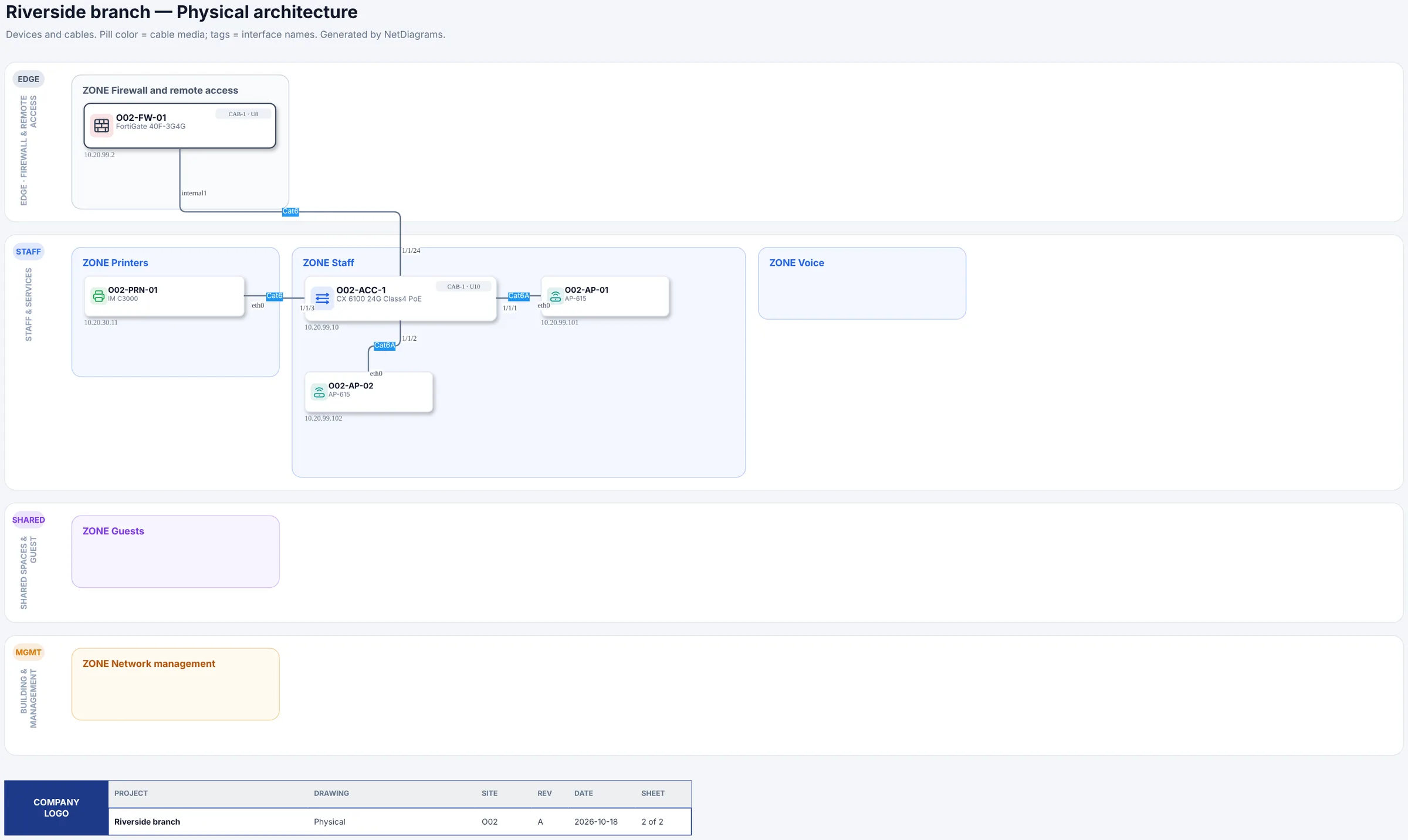
Figure 3.2. The Riverside branch (O02), drafted by NetDiagrams from its NetBox data: one firewall, one switch, two APs and a printer. Voice, guest and management have VLANs but no devices of their own, so their zones are drawn empty; meeting rooms, servers and building systems have neither, so they aren't drawn at all.
At 300 people, zones grow, mostly by adding VLANs. A bigger office usually needs more addresses before it needs more rules: a second staff VLAN, an extra server VLAN for backup traffic, a VLAN per building system. Alder & Finch already does a little of this at 140 people: staff have a wired VLAN and a Wi-Fi VLAN, servers have a server VLAN and a backup VLAN, and building systems have one VLAN for cameras and one for the door controller. Two VLANs, one zone, one rule.
Add a new zone only when a group of devices needs a different rule: a test lab, a reception kiosk, a contractor's equipment that stays for months. "Floor 4" is not a zone. It's a location, and its laptops follow the staff rule like everyone else's.
Two things grow with size: the traffic crossing the firewall between zones, and the cost of a failure. At 140 people, Alder & Finch runs a firewall pair, stacked switches, two UPSs and two internet lines, so no single box takes the office down. Chapter 7 draws each failure.
Choosing your zones: one hour with the floor plan
If your office is one flat network today, here's a way to design the zones in a single sitting, with whoever runs IT and whoever knows the building.
- Walk the floor plan. List every kind of device by where it sits: desks, reception, print corners, meeting rooms, ceilings, the comms room, the doors.
- Ask Rule 3's question of each kind. Anything that fails it gets its own zone.
- Write the one-line rule for each zone in the "who starts what" form of Rule 2. Borrow the table above.
- Decide where the gateways go. On the firewall, unless you have a reason. "The switch already does it" is a reason to write down with a date to revisit.
- List the outside. Internet lines, cloud services, home workers, the MSP. Each ends on the firewall; remote people land in the edge zone.
- Look for the leftovers. The landlord's equipment in your comms room, the alarm panel, the vending machine with a network card. Each gets a zone or a note saying it isn't yours.
You'll finish with a zone table, a few questions and at least one device nobody can name. All three belong on the drawing.
In NetDiagrams
NetBox, the open-source tool many IT teams use to record their network, has no built-in idea of a security zone. NetDiagrams reads zones from zone-* tags, and it can write the NetBox import files to add them if you don't have them yet.
Set up NetBox for an office. Run:
netdiagrams netbox-setup --profile office
It writes numbered CSV files to a netbox-setup/ folder, ready for NetBox's Import buttons. Among them are the ten office zone tags and the office device roles:
| What | Values |
|---|---|
| Zone tags | zone-internet, zone-edge, zone-staff, zone-voice, zone-print, zone-servers, zone-meeting, zone-guest, zone-building, zone-mgmt |
| Device roles | firewall, core-switch, access-switch, access-point, hypervisor, storage, ups, console-server, printer, nvr, camera, door-controller, room-system |
When NetDiagrams can read your NetBox, it leaves out what is already there. --check compares and lists each item as present or missing, and changes nothing. --apply creates the missing items through the NetBox API, with a token that can write; it never updates or deletes anything, and it's the only command in NetDiagrams that writes to NetBox. Everything else only reads.
Tag where the zone really is. NetDiagrams takes the first match: a security_zone custom field on the device, then a zone-* tag on the device, then the nearest location up the tree that carries a zone. VLANs and prefixes carry their own zone-* tags.
In a factory, locations and zones often line up. In an office they mostly don't: COMMS-2 holds servers, firewalls, switches and the NVR, all in different zones. So tag a location only when everything in it belongs to one zone. At Alder & Finch, that's the meeting rooms: tag the "Meeting rooms F2" and "Meeting rooms F3" locations zone-meeting, and the six room systems filed under them inherit the zone. Tag printers, cameras, the NVR and the door controller on the devices themselves.
Resist tagging a whole floor zone-staff to save time. A camera you forget to tag would then inherit "staff" quietly and look correct. An untagged camera, by contrast, is counted on the plan card under "Devices without a zone", where everyone can see it (Figure 3.3). A visible question beats a confident wrong answer.
Tell NetDiagrams the site is an office. Either pass the flag:
netdiagrams --profile office
or record it once, as "profile": "office" in netdiagrams.json, or in the netdiagrams JSON custom field on the NetBox site, region or site group. The office set has eight sheets, and the zone bands on them follow this chapter's model.
Before the first build, netdiagrams doctor prints, among other things, where it reads each zone from and the next three things to fix:
Here are those two parts for the day-one sample, where nobody has tagged the cameras yet:
Zones
  Read from: field security_zone, iec62443_zone, ot_zone on 0 devices, zone-* tags on 43, the location tree on 0, nothing on 10.
  Zones with devices but no VLANs in NetBox: zone-edge

Next three things to fix
  1. Devices without an asset criticality: 53 · Rate it with the asset owner: critical, high, medium or low (what stops when it fails) · Device ▸ Asset criticality (custom field) · WS-02 Network devices
  2. Devices without an owner: 53 · Name who is accountable for it (asset owner) and who runs it day to day (custodian); set once on the room or site for everything in it · Device, room or site ▸ Contacts (role Asset owner) · WS-12 Audit evidence
  3. Devices not verified in 15 months: 53 · Walk the room against the drawing and record the date on the room: it covers every device in it · Room or site ▸ Last verified (custom field) · WS-12 Audit evidence

Data quality: 82/100
  Needed to draw the site
    Devices with no name in NetBox               ok
    Devices without a zone                       10 of 53 missing
    Devices with no cable recorded               ok
    No VLANs in NetBox                           ok
    Access points but no SSIDs in NetBox         ok
    SSIDs without a VLAN (no zone, no subnet)    ok
  Needed as evidence
    Devices without a serial number              26 of 53 missing
    Devices without an asset criticality         53 of 53 missing
    Devices without a mgmt IP                    2 of 16 missing
    Devices without a room or rack               ok
    One serial number on several devices         ok
    One management IP on several devices         ok
    One asset tag on several devices             ok
    Cables without a label                       2 of 55 missing
    Cable labels used on more than one cable     ok
    Trunks with no tagged VLANs in NetBox        ok
    APs with no controller or cloud manager recorded 16 of 16 missing
    Access points without a room or floor        ok
  Needed for an audit
    Devices without an owner                     53 listed
    Devices with no config backup in 30 days     37 listed
    Devices not patched in 90 days               37 listed
    Devices not verified in 15 months            53 listed
    Devices not monitored                        16 listed
    Devices not sending their logs off the box   16 listed
    Devices in rooms with no physical access control recorded 53 listed
  Good to have
    Network models with no end-of-support date   8 of 8 missing
    Names off the naming standard                ok
    Cables without a media type                  ok
    VLANs without a subnet                       1 of 11 missing
    Subnets without a zone                       ok
    Access points without a switch port          ok
    SSIDs without switching, bands or broadcast area recorded 3 of 3 missing
    Open or OWE SSIDs outside a guest zone (check) ok
    Shared-key SSIDs on staff or management zones (check) ok
    Guest SSIDs without client isolation or a portal recorded 1 of 3 missing
    Power supplies, fans and optics without a serial number 4 of 8 missing
    Fiber cable ends with no transceiver recorded 4 of 4 missing
  Fix first: O01-CAM-01 (zone, serial); O01-CAM-03 (zone, serial); O01-CAM-05 (zone, serial); O01-CAM-07 (zone, serial); O01-CAM-09 (zone, serial)
"Read from" lists every place a zone can come from. The three field names first are the custom fields a plant site uses for its zones; an office uses zone-* tags, so ignore them. The zones themselves stay a decision: NetDiagrams draws what NetBox says, and it can't tell you that the reception kiosk deserved a zone of its own.
No NetBox yet?
Start with the zone table, on paper or in a spreadsheet. Add a zone column to your device list and fill it using this chapter's ten zone names. Fill it by location first where a location is one zone (the meeting rooms), then device by device for the rest. That's the same order NetDiagrams uses, done by hand.
Then draw the bands. netdiagrams blank --profile office -o my-office.drawio writes an empty drawing with the five office bands (Outside; Edge; Staff and services; Shared and guest; Building and management). Load the netdiagrams stencils library in draw.io for the zone and VLAN table shapes, and copy the one-line rules from the table above into each zone box. netdiagrams sample --profile office -o alder-finch.drawio writes the full Alder & Finch set to copy from.
With NetBox behind it, the zone column becomes tags every build reads. Appendix F covers getting an office into NetBox.
Missing pieces?
The zone design asks for very little on day one: the zones you know of, in their bands, and the devices you're sure of in each.
A zone you know you need but can't populate yet, such as building systems when nobody has the camera list, still gets its box, with UNKNOWN G-003 inside it. A device you've placed on a hunch, like the box in the comms room that is "probably the door system", gets ? G-004 beside it. Each gap ID is a row on worksheet WS-11, the gaps register.
Collect zones on Appendix G, worksheet WS-01 (site, areas and zones). For building systems, the camera installer's handover sheet usually lists every camera and the recorder. For the landlord's equipment, ask the building manager what they own in your space.
In a NetDiagrams build, NetBox gaps are drawn rather than hidden:
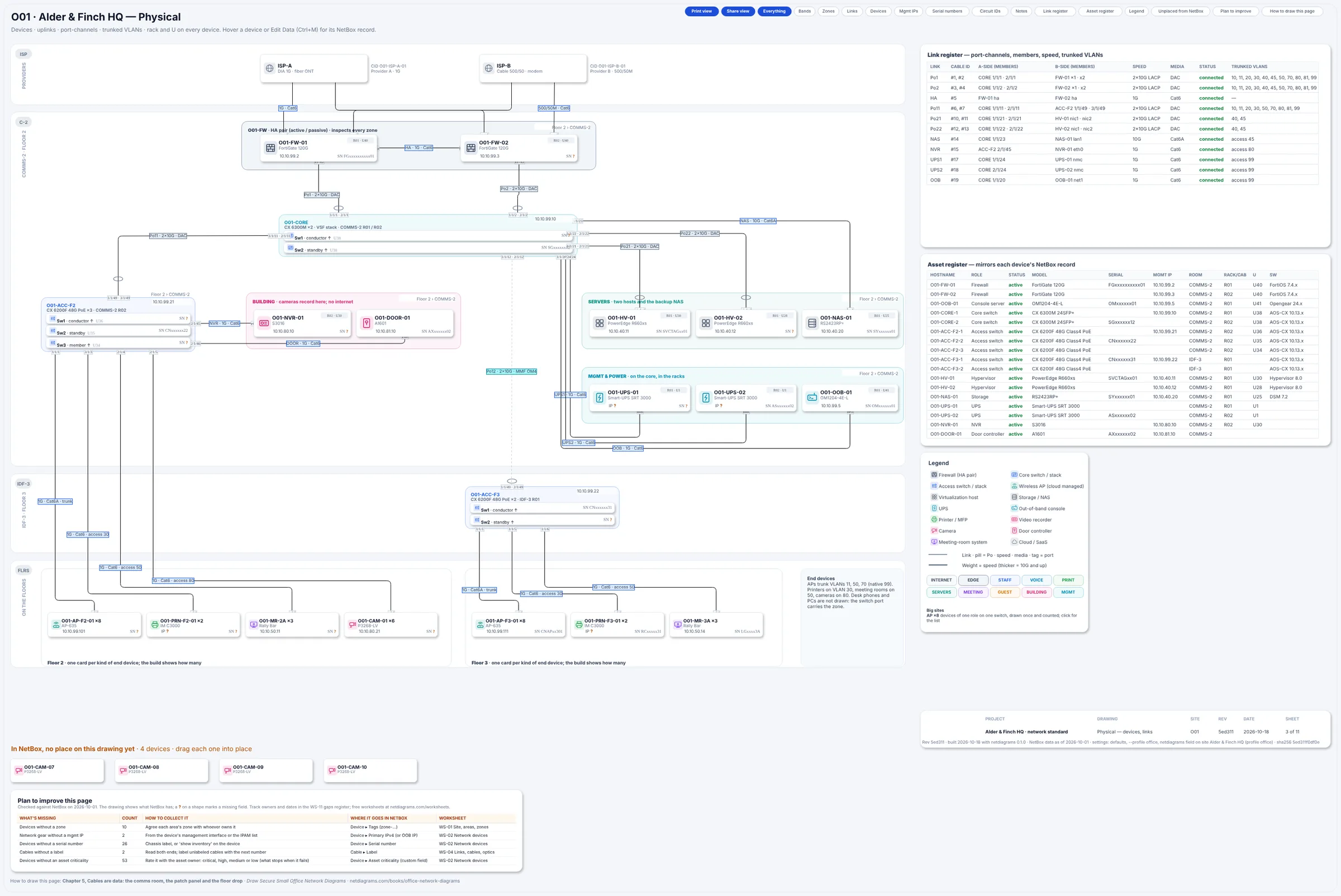
Figure 3.3. Sheet 3 of the day-one build (office-starter). Missing serials and IPs show an amber "?", the ten cameras with no zone are counted on the plan card, and the four the build can't place wait in the tray below, the floor 3 uplink is dashed, and the "Plan to improve this page" card lists what's missing with the worksheet for each.
To try it, run python scripts/make_office_sample.py --site starter -o office-starter.json in the NetDiagrams repository, then netdiagrams build --profile office --input office-starter.json.
Monday morning
Five things to do with your own office this week:
- Write your zone table. Ten rows to start, from this chapter. Delete the zones whose devices you truly don't have, and write a one-line "who starts what" rule for each one you keep.
- Find out what routes between your VLANs. Log in to the core switch (or ask your MSP) and check whether any VLAN has a gateway there. Each one is a path that skips the firewall.
- Join the guest Wi-Fi from your phone and try to open the printer's web page and the file server. If either answers, the guest zone is a second password, not a zone.
- Make a list of building systems and who installed them: cameras, recorder, door controller, the landlord's boxes. Each gets a zone or a note.
- Run
netdiagrams netbox-setup --profile office, import the tags and roles, tag your meeting-room locations, and build. Check the plan card's "Devices without a zone" row, and the tray. No NetBox yet? Add a zone column to your device list and fill it for one floor.
Quotable: A small office doesn't need many firewalls. It needs one firewall that every zone has to walk past.
Next: Chapter 4, "Office VLANs on paper: the logical page", where each zone gets its VLANs, subnets and gateways.